Up next in 10

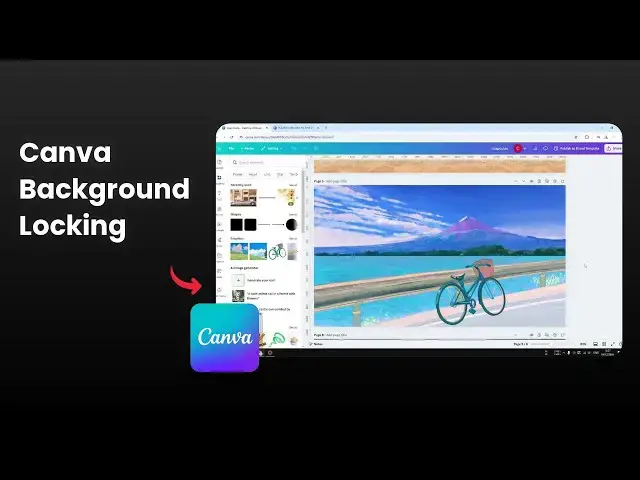
How to Lock Background in Canva
Dec 9, 2024

👉 Learn how to easily lock your background in Canva to prevent accidental edits. This quick tutorial will help you maintain the integrity of your designs while working efficiently on your projects.
🎙 Microphone: https://geni.us/KVRt
🦾 Boom arm: https://geni.us/FU6y
💻 Web hosting: https://geni.us/BestWordPressHosting
❤ Subscribe if you find this video helpful:
https://www.youtube.com/@asapguide?sub_confirmation=1
Show More Show Less View Video Transcript
0:01
hi in this video I'm going to show you
0:03
on how you can lock the background in
0:05
your confa design so background is
0:08
usually just a picture or a color that
0:10
is located at the very back of your cona
0:13
Des layers so if you go to position and
0:16
then click layers background is going to
0:18
be something that is position at the
0:19
very bottom so after that there is some
0:22
other elements on top of it so that is
0:24
the background and uh it's very useful
0:27
to actually lock the background because
0:29
you don't want to accidentally change it
0:31
into a different picture for example now
0:34
let's say if I go to elements and if I
0:37
let's say I want to put insert this
0:39
picture into my design by dragging I
0:42
could accidentally change the background
0:44
so if you navigate to position again
0:45
you'll see now the background is
0:47
different so that's why locking the
0:49
background is extremely recommended when
0:51
you have a very complicated design or
0:53
when you want to insert other pictures
0:55
into the design now to lock the
0:57
background you can click oh sorry you
0:59
can right click on it and then you can
1:01
click lock background and then click
1:02
lock or again you can go to position
1:05
layers and then right click here lock
1:07
background and click lock now uh I won't
1:11
accidentally change the background even
1:13
though I'm trying to put a different
1:15
picture into this D let's say I'm going
1:18
to elements again and if I want to drag
1:21
and drop now this is not a background it
1:25
appears to be the background but if you
1:26
go to position and click layer you see
1:28
this is just a big that is positioned on
1:31
top of the background I could move it
1:33
around somewhere else and it will reveal
1:35
the actual background so yeah that is
1:38
going to prevent this background from
1:40
accidentally being changed okay that was
1:43
uh for a picture background but how
1:45
about if you're using other elements
1:47
like shapes or maybe factor or maybe you
1:49
have multiple backgrounds to combine
1:52
together well if you actually navigate
1:54
to this page sorry uh in this document
1:57
for example this is actually not one
1:59
picture this is two different
2:01
pictures this lower part and there's
2:04
also this top section the top section is
2:07
actually the actual background but I
2:09
also use this picture to create the
2:12
illusion that there is a bicycle on this
2:14
picture even though the actual picture
2:16
was just this so uh this is actually one
2:20
type of background this is two elements
2:23
overlapping together and usually there's
2:25
not much you can do but maybe one thing
2:27
that you can do is that you can lock
2:29
that element as well so this element is
2:31
free to move and I don't want that to
2:34
happen I don't want to accidentally
2:35
change or move this object so I'm going
2:38
to click on it and click this path lock
2:40
icon to lock the position and I'm going
2:42
to click lock once again so the first
2:44
one was to lock it position but you can
2:47
still change the content another click
2:50
is by it's going to lock the entire
2:53
thing so I won't accidentally uh move or
2:56
change the object and I'll do the same
2:58
for the background let right click lock
3:01
background and click lock now these two
3:03
are not going to be accidentally mov
3:05
when I'm working on this page so there
3:08
you have it that's how you can lock a
3:11
background in Cana
#Hobbies & Leisure
#Skins, Themes & Wallpapers