Key takeaways:
- Use lightweight AI models for older or low-end computers
- Pick the right model size for your hardware
- Tools like Jan make it easy and private to run AI at home
So here’s the deal: AI models are everywhere, but most of them want a beast of a PC. If you’re on a budget or rocking an older setup, it feels like you’re locked out of the AI party. But don’t stress—there’s a way to run AI on your own machine, even if it’s not the latest and greatest. This post is for anyone who wants to chat with AI or try out open-source models without dropping cash on new hardware.
I’ll walk you through how to pick the right AI model, what tools to use, and how to get it running on your own PC. You’ll see that you don’t need a fancy GPU or a pile of RAM to get started. Ready? Here’s how you can make it happen.
Why Most AI Models Won’t Run on Old Hardware
Most open-source AI models from Meta, Mistral, Google, and others are huge. They’re trained on massive datasets and need a ton of resources to run. If you try to run something like Llama or Gemma at full size, your PC will probably just freeze or crash.
But the AI world moves fast. Over the last year, smaller, lighter models have popped up. These are designed for people who don’t have a monster PC. You can run these on a basic desktop or even a laptop that’s a few years old.
What You Need to Run AI on a Potato PC
You don’t need much. Here’s what I use:
- A Ryzen 3 3100 (nothing fancy)
- 16GB RAM (pretty standard now)
- An older GPU (not top tier)
If your PC is even less powerful, you still have options. Some models run with as little as 4GB RAM. Just keep your expectations in check—don’t try to run the biggest models out there.
If you want to check your own specs, this guide can help: check the specs on a Windows PC.
Picking the Right AI Model for Your Hardware
Here’s the trick: go for smaller models. The size is usually listed in GB (gigabytes) or by parameter count (like 1.5B, 7B, 14B, etc.). The bigger the number, the “smarter” the model, but also the more demanding.
- For low-end PCs, try models under 3GB.
- If you have more RAM or a better GPU, you can go higher, but don’t push it.
Some popular lightweight models:
- DeepSeek (as small as 1.5B parameters)
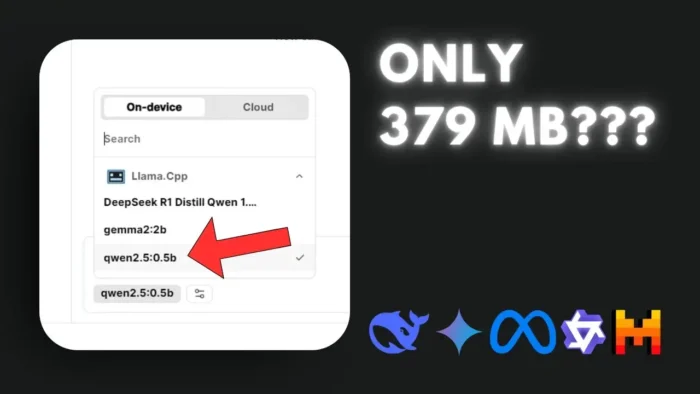
- Qwen 2.5 (just 379MB—yes, MB, not GB)
- Llama variants at lower parameter counts
Using Jan to Download and Run AI Models
I use Jan because it’s simple, privacy-focused, and designed for regular people—not just devs. Here’s how it works:
- Go to jan.ai and download the app for your OS (Windows, Mac, or Linux).
- Install it like any other program.
- Open it up, and you’ll see a friendly interface. No coding required.
You can also check out other tools, but Jan is easier than Ollama or LM Studio if you’re just starting out.
Downloading and Installing a Model
Inside Jan, look for the “Hub” menu. Here’s where you find all the available models. You can:
- Search for a model by name (Llama, DeepSeek, Qwen, etc.)
- Browse by popularity or latest releases
- Filter by size (super helpful for potato PCs)
When you pick a model, Jan will warn you if it’s too big for your hardware. If you see a warning sign, skip that model. Stick to what your PC can handle.
Once you find a good fit:
- Hit the download button
- Wait for it to finish (how long depends on your internet and the model size)
- Click “Use” or open a new chat with the model
Running Your First AI Chat
After the download, just hit “Use” and start chatting. You can ask it questions, have it write code, check your grammar, or even write a poem. The speed will depend on your hardware and the model size, but with the right pick, it’s totally usable.
If you want to make your PC run a bit smoother while you’re at it, check out these tips: improve PC performance without upgrade.
How Small Can You Go? Super Lightweight Models
Some models are tiny. Qwen 2.5 is under 400MB and still does a decent job for basic tasks. These are perfect if your PC is really old or you’re running with minimal RAM.
- With 4GB RAM, you can still run Qwen 2.5. That’s wild.
- Don’t expect miracles, but for basic chatting or text tasks, it works.
Privacy and Security
One of the best things about running AI locally: your data stays on your machine. No cloud, no sending your questions to some server. If privacy matters to you, this is a big win.
Troubleshooting: If Things Don’t Work
If your PC is struggling:
- Try a smaller model
- Close other apps to free up RAM
- Make sure you have enough disk space for the model download
If you get errors or crashes, double-check your hardware specs. Sometimes, updating your graphics drivers or cleaning up your PC helps. Here’s a guide to clean your PC if you need it.
Can You Run AI on a Laptop?
Yep, as long as you have enough RAM and storage. Battery life might take a hit if you run big models, but for small ones, it’s totally doable.
Table: Model Size vs. Hardware Needs
| Model Name | Size | Min RAM Needed | Good For |
|---|---|---|---|
| Qwen 2.5 | 379MB | 4GB | Basic chat, Q&A |
| DeepSeek 1.5B | ~2GB | 8GB | More fluent answers |
| Llama 7B | ~3GB | 8-12GB | General tasks |
| Gemma | ~4GB+ | 12-16GB | Complex tasks |
Keeping Your PC Cool
Running AI models can heat up your PC, especially if you’re using the CPU a lot. If your fan sounds like a jet, don’t panic. Just make sure your PC is clean and has good airflow. If you want tips, check out how to cool down a laptop.
Saving Space: Where to Store Models
AI models can eat up a lot of storage. If you’re running out of space, think about moving old files to an external drive or cleaning up downloads. Here’s a quick guide to free up and increase hard disk drive space.
What Can You Do With Local AI?
Once you’ve got it running, the sky’s the limit:
- Chat with the AI for fun or help
- Write or edit text
- Generate code snippets
- Get help with homework
- Brainstorm ideas
All without sending your data anywhere else.
Tips for a Smoother Experience
- Stick to smaller models for faster responses
- Keep your system clean and close background apps
- Update your drivers for better compatibility
- Store models on a fast drive if possible
If you want to see which Chrome tabs are slowing you down, this guide can help: see which Chrome tabs are slowing down your PC.
FAQs
How much RAM do I need to run local AI?
For the smallest models, 4GB can work. For better performance, 8GB or more is recommended.
Can I run AI on a laptop?
Yes, as long as you have enough RAM and storage. Just keep an eye on heat and battery.
What if my PC crashes when running a model?
Try a smaller model, close other apps, and check your specs. Clean up your PC if needed.
Are there other tools besides Jan?
Yes, but Jan is the easiest for beginners. Other options like Ollama or LM Studio are more developer-focused.
Is running AI locally safe?
Yes, your data stays on your PC, so it’s private. Just download models from trusted sources.
👾🖥️