Key takeaways:
- Use Whisperflow AI to turn speech into clean, fixed-up text
- Command mode lets you edit and upgrade prompts with your voice
- Pro feature, but free trial users can try it out
Ever get stuck writing the perfect prompt for your favorite AI tool? Or maybe you just want your words to come out right, without all the awkward typos and grammar mess? That’s where Whisperflow AI steps in. This tool listens to what you say, cleans up your speech, and spits out text that’s actually better than what you said out loud. I’ll show you how to use its command mode to level up your prompts—just by saying what you want.
The Basics: What Whisperflow AI Actually Does and Why It’s Different
So, Whisperflow isn’t your average voice-to-text app. It’s got AI under the hood, which means it doesn’t just write down what you say—it fixes it. Stumble over your words? Mix up your facts? The AI figures out what you meant and polishes the output. You get text that’s clean, correct, and more readable.
Here’s the cool part: if you say, “Hey, please generate a report about Tesla Model X—sorry, I mean Tesla Model 3,” the AI knows you meant Model 3. It ignores your slip-up and just gives you what you intended. You don’t have to backtrack or edit later. That’s a game changer for anyone who talks faster than they type (which is basically all of us).
Command Mode: Edit and Upgrade Prompts With Your Voice
Now, the real magic is in command mode. This feature is still in beta, but it works surprisingly well. Command mode lets you take any text—like a prompt for an AI art tool or chatbot—and tell Whisperflow to improve it. Want your prompt to sound more cinematic? Just say so. Want it longer, more detailed, or more specific? Just say what you want.
Here’s how it works:
- Select the text you want to edit
- Hit the shortcut (Fn+Cmd on Mac, Ctrl+Win+Alt on Windows)
- Say your command, like “Please improve this prompt to make it more cinematic”
- The AI rewrites your prompt, right there
It’s like having a personal editor who actually listens to you. No need to retype or fuss with menus.
Real Example: Making an AI Art Prompt Better
Let’s say you’re using an AI art tool and you start with a simple prompt:
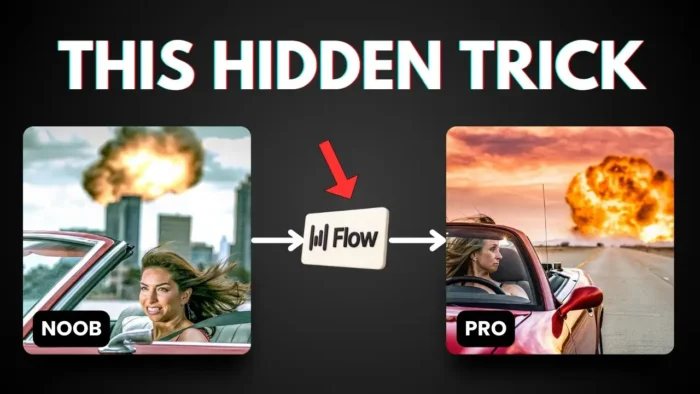
“Generate a picture of a woman riding a convertible car with a big, big explosion in the background.”
It’s fine, but maybe you want something that pops more. With command mode, you can tell Whisperflow to make it more cinematic. The AI will rewrite your prompt, maybe adding details about lighting, mood, or action. The result? A prompt that’s closer to what you pictured in your head.
And if you want to compare the before and after, just copy the original and the improved version side by side. You’ll see how much more specific and powerful your instructions become.
Why This Matters for AI Tools and Everyday Work
If you use AI tools like chatbots, art generators, or research assistants, you know that the quality of your prompt matters. The more detailed and clear your instructions, the better the results. But writing those prompts can be a pain, especially if you’re in a hurry or not sure how to phrase things.
With Whisperflow command mode, you can just say what you want. The AI does the heavy lifting, turning your rough ideas into polished prompts. You get better results, with less effort.
And if you’re working on a Windows machine and have USB issues, check out how to fix USB port on Android phone or how to connect phone to laptop with USB for some extra productivity tips.
Pro Feature: Who Gets Access and How to Try
Right now, command mode is a pro-only feature. If you’re on the free plan, you won’t see it. But if you’re new, you can use it during the free trial. That gives you a chance to see if it fits your workflow before paying up.
Just a heads up: since it’s still in beta, you might run into some quirks. But honestly, it’s already pretty solid for most use cases.
Step-by-Step: How to Use Command Mode in Whisperflow AI
1. Install and Set Up Whisperflow on Your Computer
Download and install the app. Make sure you’re logged in with a pro account or on the free trial.
2. Open Your Favorite AI Tool
You can use this with any app where you write prompts—art generators, chatbots, whatever.
3. Select the Text You Want to Improve
Highlight your prompt or any text you want to make better.
4. Use the Keyboard Shortcut
- Mac: Fn + Cmd
- Windows: Ctrl + Win + Alt
This brings up the command mode.
5. Speak Your Command
Say what you want, like “Make this prompt more detailed,” “Add a sense of urgency,” or “Rewrite this to sound more professional.”
6. See the Results
The AI will rewrite your text on the spot. Compare, tweak, and use the improved version.
7. Keep Experimenting
Try different commands. You can ask for longer prompts, more cinematic language, or just a quick grammar fix.
Tips for Getting the Most Out of Whisperflow AI
- Be specific with your commands. The more you say, the better the AI understands your intent.
- Don’t worry about mistakes when speaking. The AI is trained to fix them.
- Compare the before and after versions to see what works best for your needs.
- Use it for more than just prompts—emails, notes, anything you want to sound better.
Troubleshooting: What to Do If Command Mode Isn’t Working
- Make sure you’re on the pro plan or free trial.
- Double-check your keyboard shortcut (it’s different for Mac and Windows).
- If the app isn’t responding, try restarting it.
- Still stuck? Sometimes, updating the app or your OS helps.
More Ways to Use AI for Productivity
If you’re into automating your workflow and want to keep your tech running smooth, check out guides like how to speed up Windows easily or how to fix file too large for USB drive. These tips pair well with AI tools, since a faster computer means less waiting around.
FAQs
How do I activate command mode in Whisperflow AI?
Use the shortcut: Fn+Cmd for Mac, Ctrl+Win+Alt for Windows. Select your text, hit the shortcut, and speak your command.
Can I use command mode on the free plan?
No, it’s only for pro users or those on the free trial.
What kind of commands can I give?
Anything that tells the AI how to improve your text—make it longer, more detailed, more cinematic, or just fix grammar.
Will the AI always make my prompt better?
Not always, but it usually makes your text more detailed and closer to what you want. You can always compare and choose.
Is Whisperflow AI only for prompts?
Nope, you can use it for emails, notes, or any text you want to clean up or improve.
🎤📝 Give it a try and see how much easier it is to get your ideas across—no typing required.