Key takeaways:
- Upload or link a video, and VideoHunt.ai will cut out viral-worthy clips
- Quick processing, simple editing, but limited advanced features
- Free 60 minutes for new users, but don’t expect magic every time
Ever sit through a long, boring video and wish you could just grab the best moments for TikTok or YouTube Shorts? Yeah, me too. That’s where VideoHunt.ai steps in. This tool claims it can chop up any video—podcast, tutorial, whatever—and spit out short clips that might blow up online. No need to scrub through hours of footage yourself.
I’m giving you the real rundown on how it works, what’s cool, and what’s meh. If you want to save time, make more content, or just see if AI can spot the viral gold, keep reading.
Uploading or Linking Your Video Is Super Simple
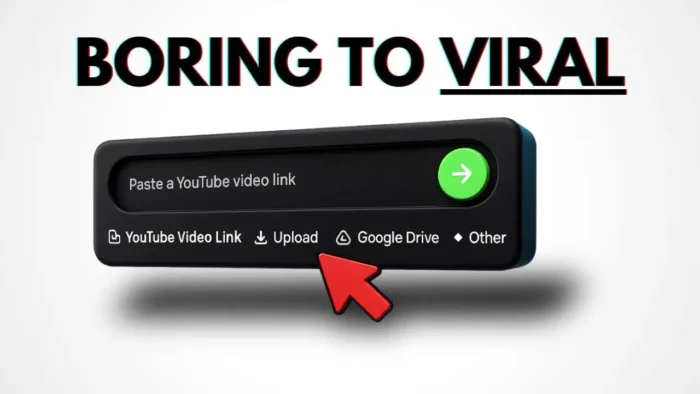
The first thing you notice with VideoHunt.ai is how easy it is to get started. You can upload a video file or just paste a YouTube link. No fuss, no complicated menus. Just sign up with Google or email, and you’re in.
Once you drop in your video link, you hit send, and the AI starts analyzing. I thought it would take a while, but it was ready in under a minute. That’s fast, especially if you’re used to waiting around for other editors to process long files.
If you want to know how to download a YouTube video first, check this out: how to download YouTube video from all devices.
AI Picks Out Viral Moments—But Don’t Expect Miracles
After processing, VideoHunt.ai gives you a bunch of short clips. There’s even a “virality” filter, so you can sort the moments most likely to get attention. The AI uses what’s in your video to figure out which scenes might pop off as YouTube Shorts or TikTok.
But here’s the thing: if your original video is dry, don’t expect the AI to work magic. I tried it with a basic tutorial, and while the clips were decent, none of them screamed “viral.” The tool can’t turn water into wine, but it does save you from hunting for those moments yourself.
If you’re looking to make your videos stand out, you might want to learn how to add text or effects. Here’s a guide for adding text in Filmora.
Editing Is Clean and Straightforward—But Limited
The editing interface is simple, which is great if you hate complicated software. You can:
- Change the aspect ratio (like 16:9 to 9:16 for vertical videos)
- Add and customize captions (font, size, color, shadow, background, etc.)
- Export clips in 1080p
But don’t expect advanced editing. You can’t stitch multiple clips together or do fancy transitions. The aspect ratio conversion is basic—sometimes it just adds blank space instead of resizing the video in a smart way. If you want to resize or crop videos more precisely, check out how to professionally resize videos.
Comparing VideoHunt.ai to Other AI Video Tools
If you’ve used Opus Clip AI or Filmora, you’ll notice VideoHunt.ai is a bit more barebones. Opus Clip can convert formats and stitch clips, while Filmora gives you more editing power. Still, VideoHunt.ai is quick and easy for grabbing highlights.
| Feature | VideoHunt.ai | Opus Clip AI | Filmora |
|---|---|---|---|
| AI viral clip finder | ✅ | ✅ | ❌ |
| Aspect ratio change | ✅ (basic) | ✅ (better) | ✅ (advanced) |
| Clip stitching | ❌ | ✅ | ✅ |
| Caption customization | ✅ | Limited | ✅ |
| Advanced editing | ❌ | ❌ | ✅ |
| Free minutes | 60 for new users | Varies | Free/paid |
If you want something more advanced, top free simple video editor software for beginner has some good picks.
Exporting and Downloading Your Clips
Once you’re happy with a clip, you can export it at 1080p. That’s good enough for most social platforms. Just keep in mind, if you changed the aspect ratio, you might get black bars or empty space. You’ll have to fill that in yourself if you want it to look pro.
For tips on making your video files smaller or converting formats, check out how to convert video to GIF or how to reduce PDF size.
The Free Plan Is Generous, But Don’t Rely on It for Everything
You get 60 free minutes to try out VideoHunt.ai. That’s enough to cut up a bunch of videos. But if you want more, you’ll have to pay. For creators who pump out a lot of content, it could be worth it for the time saved.
If you want to get your clips onto Instagram from your PC, here’s a quick guide: how to upload photo to Instagram from PC.
What I Wish Was Better
- The aspect ratio tool could be smarter—sometimes it just slaps a blank background on the sides.
- No way to merge different clips into one highlight reel.
- Editing is limited to captions and cropping.
- If your video isn’t exciting, the AI won’t make it go viral.
If you want to do more with your clips, like adding transitions or effects, check out how to add transition in Filmora or how to blur face in Filmora.
Who Should Use VideoHunt.ai?
If you’re a content creator, social media manager, or just tired of scrubbing through long videos, VideoHunt.ai is worth a shot. It’s fast, easy, and can help you get more mileage out of your old content. Just don’t expect it to do all the work for you.
FAQs
It uses AI to scan your video and selects clips it thinks will get attention based on what’s trending and what usually performs well in short-form content.
Can I upload any type of video?
Yes, you can upload files or paste a YouTube link. It works with most common formats.
Does it work for podcasts and webinars?
Absolutely. It’s designed to pull out highlights from long-form content like podcasts, interviews, and webinars.
Can I edit the clips after they’re generated?
You can change the aspect ratio and customize captions, but advanced editing like merging clips or adding effects isn’t available.
Is there a limit to the free plan?
You get 60 minutes for free when you sign up. After that, you’ll need to pay for more processing time.
If you want to know more about editing or sharing your videos, check out how to record and edit videos in TikTok or how to add emojis to your TikTok video. 🎬✨