Key takeaways:
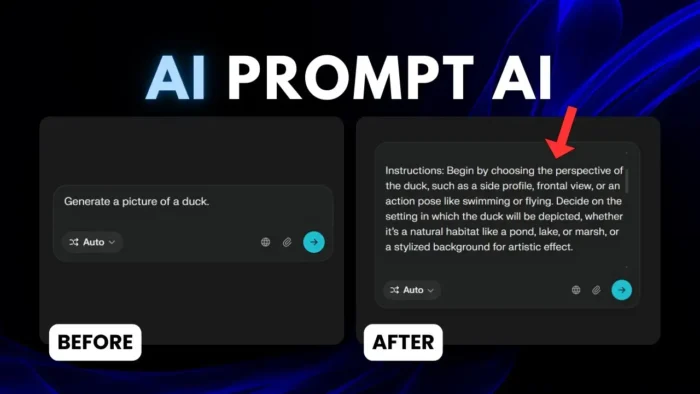
- Prom Automized AI rewrites your simple prompts into detailed ones.
- Works on most web-based AI platforms for free.
- More detail can mean better answers, but not always.
Ever feel like your prompting skills just aren’t it? You type a basic request into an AI, cross your fingers, and hope for the best. But sometimes, the answer is just meh. That’s where Prom Automized AI steps in—it takes your simple prompt and turns it into something way more detailed, so you can get answers that actually make sense. Stick around, I’ll show you how this tool works, what it does well, and where it might trip you up.
Why Prom Automized AI Exists and Who It’s For
Prompting is the main thing you gotta deal with when using AI tools. If you’re new or just not into writing long instructions, you probably know the struggle. Prom Automized AI is for people who want better answers without learning the art of prompt engineering. It’s free, easy to use, and works with a bunch of big names like OpenAI, Perplexity, Gemini, and more. You just need a Chromium-based browser (like Chrome or Edge), and you’re set.
How Prom Automized AI Actually Works in Your Browser
You install the extension from the Chrome Web Store. Once it’s on, you’ll see a new button in your favorite AI chat tool’s text field. Write your prompt like usual, hit the Prom Automized button, and it’ll rewrite your prompt to be more detailed. Then you send that new prompt to the AI. The extension only works in your browser, not in desktop apps, so keep that in mind.
If you’re into browser tweaks, check out how to manage extensions on Google Chrome.
Real Examples: What Happens When You Use Prom Automized AI
I tried it with a simple prompt asking for the latest news about GPT-4o’s image generation. The basic prompt got me a decent answer, but the optimized prompt was way longer and the answer was super detailed. The AI even pulled info from more sources—52 pages instead of 13. More detail isn’t always better, but it does give you more info to work with.
Then I tested image generation. I asked for a picture of a woman with her cat. The simple prompt gave me a nice, usable image. The optimized prompt was longer and more specific, so the image had a defined environment and activity. Sometimes that’s what you want, sometimes it’s too much.
When More Detail Isn’t Always What You Need
There’s a catch. If your prompt is too specific, you might box the AI in and kill its creativity. For example, when I asked Gemini to make a personal website, my basic prompt got me a modern design with some cool animation, even though I didn’t ask for it. The optimized prompt was longer, but the result looked less creative—just super literal instructions.
If you want to keep things open-ended, sometimes a simple prompt is better. If you want something exact, go for the optimized version.
Step-by-Step: How to Get Started With Prom Automized AI
- Go to the Prom Automized website (link’s in the video description).
- Sign up with Google or email—it’s free.
- You get 10 credits a day, which is plenty for most people.
- Install the Chrome extension.
- Open your favorite AI tool in your browser.
- Write your prompt, click the Prom Automized button, and watch it work.
Need help with browser settings? Here’s how to update Google Chrome for secure browsing.
Features That Make Life Easier
- Bookmark prompts: Save your favorite prompts to use again.
- Translation: Not ready yet, but coming soon.
- Works with most popular AI platforms: OpenAI, Perplexity, Gemini, and others.
- Web only: No desktop app support.
If you’re into saving time, you might also want to auto-delete Chrome history to keep things tidy.
Limitations: What Prom Automized AI Can’t Fix
Prom Automized AI isn’t magic. Sometimes, even with a super-detailed prompt, the AI still misses the point. I tried a logic puzzle prompt (“5 = 10, 6 = 12… what is 10?”) and both the simple and optimized prompts got it wrong. The AI just followed the obvious pattern, not the trick.
Also, some AI models are better at interpreting basic prompts. If you’re using a reasoning model, it might not need all that extra detail, because it’ll figure out what you want anyway.
When to Use It and When to Skip
- Use Prom Automized AI when:
- You’re not sure how to write a good prompt.
- You want more detail or specificity.
- You want to save time writing long instructions.
- Skip it when:
- You want the AI to be creative.
- You’re using an AI that already “gets” simple instructions.
- You’re working in a desktop app (it won’t work).
Extra Tips for Better Prompting
- Try both simple and optimized prompts to see which gives you the answer you want.
- If you’re working with images, decide if you want more creative freedom or a specific look.
- For logic or reasoning tasks, sometimes less is more.
If you’re into browser hacks, check out how to change Chrome’s default download location to keep your files organized.
FAQs
How do I install Prom Automized AI?
Just grab the extension from the Chrome Web Store, sign up on their site, and you’re good to go.
Does it work on desktop AI apps?
Nope, only in Chromium-based browsers like Chrome or Edge.
Is Prom Automized AI free?
Yes, you get 10 credits a day for free. There’s a paid plan, but most people won’t need it.
Does it always make prompts better?
Not always. Sometimes a simple prompt is all you need, especially for creative tasks.
Can I use it with any AI platform?
It works with most popular web-based AI tools, but not every single one. Try it out on your favorite and see.
Want more browser tips? How to manage extensions on Google Chrome is a good place to start.