Key takeaways:
- Veo 2 by Google lets anyone create AI videos from text prompts.
- You just need a Google account and Google AI Studio.
- The process is quick, but results can be a bit unpredictable.
Making AI videos used to be a closed club. Veo was invite-only, and most people couldn’t even get in. Now with Veo 2, Google has opened the doors. You can make your own AI-generated videos straight from your browser—no more waiting for access or special invites.
If you’ve ever wanted to turn your ideas into videos without fancy gear or editing skills, this is your shot. I’ll walk you through how to use Veo 2 on Google AI Studio, show what to expect, and give you a few tips to get the most out of it.
Table of Contents
- Getting Started with Veo 2 on Google AI Studio
- Writing Prompts That Actually Work
- How Long Does It Take to Generate?
- Realism Over Animation: What to Expect from Veo 2’s Results
- Uploading Images to Animate with Veo 2
- Testing Veo 2 with Tricky Prompts
- Tips for Better AI Video Generation
- What If Veo 2 Isn’t Working?
- Sharing and Editing Your AI Videos
- Is Veo 2 Free? Will It Stay That Way?
- Final Thoughts
- FAQs
- How do I access Veo 2?
- Can I use my own photos to generate videos?
- How long does it take to generate a video?
- Is Veo 2 free?
- What if my video isn’t what I expected?
Getting Started with Veo 2 on Google AI Studio
So, Veo 2 is now open for everyone. You don’t need to beg for invites or know someone on the inside. Just head to Google AI Studio (link’s in the video description) and sign in with your Google account. The new interface looks way better than before—clean, simple, and honestly, kind of fun to use.
You’ll need to connect your Google Drive, which is just a couple of clicks. Once you’re in, you’ll see a menu called video gen. That’s where the magic happens. Type what you want to see, hit generate, and let Veo 2 do its thing.
Writing Prompts That Actually Work
The prompt is everything. If you want to create, say, “an animation video of someone doing yoga on top of the roof,” just type it in. Veo 2 will try its best to deliver. But here’s the thing—sometimes it’ll give you something close, but not exactly what you pictured. Like, you might ask for animation and get a hyper-realistic video instead. Or maybe your “roof” is a skyscraper, not a house. That’s just how these AI models roll.
You can tweak a few settings—model type (right now it’s just Veo 2), number of generations, aspect ratio, and duration. Five seconds is the default, and you can’t change the frame rate or resolution yet. There’s also a negative prompt box if you want to tell the AI what to avoid, but that’s optional.
How Long Does It Take to Generate?
It’s not instant, but it’s not slow either. For a five-second video, expect to wait about 30 to 50 seconds. Sometimes it’s faster, sometimes there’s a queue, especially since it’s free and everyone’s trying it out. If you want to avoid waiting, Google might roll out a premium plan in the future, but for now, patience is part of the deal.
Realism Over Animation: What to Expect from Veo 2’s Results
Don’t expect Pixar-level animation. Veo 2 is all about realism, and sometimes it’s almost too real. Like, you ask for a cartoon dog, and you get a video that looks like a real dog, but with some AI weirdness—maybe the fur is a little blurry, or the details aren’t quite right. Still, for a five-second clip, it’s pretty wild.
If you want to edit or improve your video, check out some free simple video editor software for beginners. It’s a good way to clean up those AI clips before sharing.
Uploading Images to Animate with Veo 2
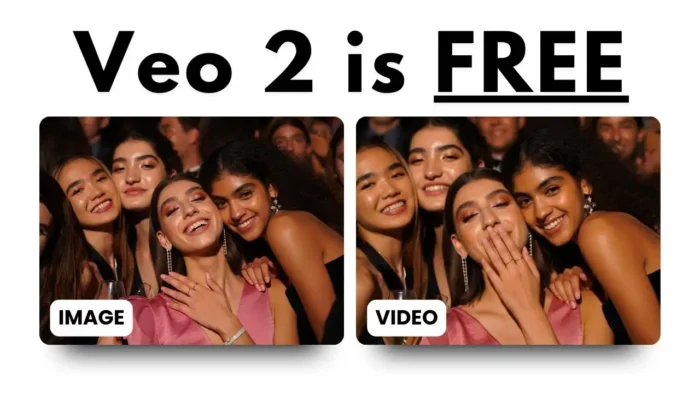
One cool feature: you can upload a picture and let Veo 2 turn it into a video. Just pick your image, upload it, and let the AI work. The results are surprisingly realistic, especially for group photos or simple scenes. Again, don’t expect perfection—sometimes the AI gets confused, but it’s still fun to see your photos come to life.
If you need to convert images to PDF or resize pictures on PC before uploading, there are easy guides for that too.
Testing Veo 2 with Tricky Prompts
I tried uploading a real photo of someone inflating a bicycle tire. This is where AI models usually trip up. The result? The pose looked flexible, not stiff, but the action wasn’t quite right. The video felt realistic, but the person wasn’t actually inflating the tire. Still, it’s impressive how close it gets, and for most simple prompts, you’ll get something usable.
Tips for Better AI Video Generation
- Keep prompts simple and clear. The more complicated your request, the more likely the AI will get confused.
- Use the negative prompt box if you want to avoid certain things, like “no skyscrapers” or “no real-life style.”
- Expect some weirdness. AI isn’t perfect, but sometimes those little glitches make the video more interesting.
- Download your videos and save them to Google Drive or your computer. If you want to save a YouTube video to Google Drive, there’s a guide for that too.
What If Veo 2 Isn’t Working?
If you run into issues, try refreshing the page or reconnecting your Google account. And if you’re having trouble with your video files, you can always convert video to GIF or fix file too large for USB drive if you want to move things around.
Sharing and Editing Your AI Videos
Once your video is ready, you can download it, share it, or even edit it with a simple video editor. If you want to blur a face in your video or improve video quality, there are step-by-step guides to help.
Is Veo 2 Free? Will It Stay That Way?
Right now, Veo 2 is free for everyone. There might be a premium plan in the future, especially if demand stays high. For now, you just need a Google account, and you’re good to go.
Final Thoughts
Veo 2 makes AI video creation easy and accessible. The results aren’t always perfect, but for quick, realistic clips, it’s hard to beat. If you want to experiment, have fun, and maybe get a little creative, give it a try. And if you want to edit or share your videos, check out some of the handy guides linked above. 🚀
FAQs
How do I access Veo 2?
Just go to Google AI Studio and sign in with your Google account. You’ll need to connect your Google Drive, then you can start making videos.
Can I use my own photos to generate videos?
Yep, you can upload a photo and Veo 2 will animate it. Results vary, but it works best with simple, clear images.
How long does it take to generate a video?
Usually 30-50 seconds for a five-second clip. It depends on how busy the servers are.
Is Veo 2 free?
Right now, it’s free. Google might add a premium plan later, but for now, anyone can use it.
What if my video isn’t what I expected?
Try tweaking your prompt or using the negative prompt box. AI isn’t perfect, so sometimes you’ll get results that are close, but not exact. Keep experimenting!