Key takeaways:
- Build apps or websites just by typing prompts 🤯
- Edit, draw, and deploy—all in the browser
- Runs on Google’s stack, so deployment is a breeze
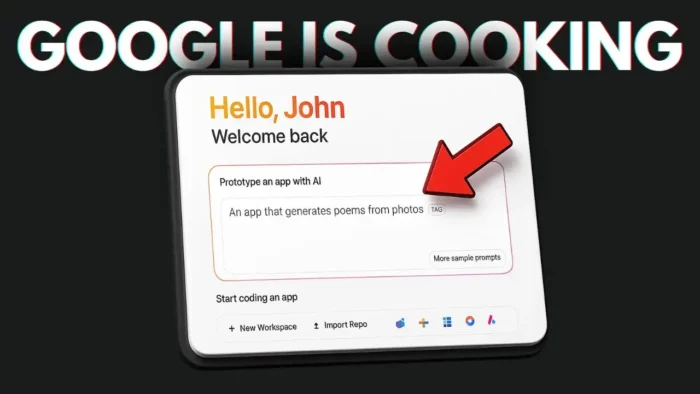
So, Google dropped Firebase Studio and honestly, it’s wild. You can build a website or an Android app just by telling it what you want. No downloads, no setup, just a browser and a Google account. If you’ve ever tried stuff like Cursor or Wind Serve, this feels like that but smoother, and it’s all online. I’m about to walk you through what it’s like to use it for the first time, what stands out, and what’s still a little weird.
Table of Contents
- Getting Started with Firebase Studio: Fast Setup and First Impressions
- Building Your First App: Prompt, Prototype, Play
- Making Changes on the Fly: Prompts, Drawing, and Annotating
- Building a Website from Scratch: From Prompt to Live Site
- Editing Elements and Real-Time AI Tweaks
- Preview, Share, and Deploy: Going Live Is Simple
- Why Firebase Studio Feels Different from Other AI Code Editors
- What’s Still Weird or Missing
- Table: Firebase Studio vs Traditional AI Code Editors
- Tips for Getting the Most Out of Firebase Studio
- FAQs
- How do I start using Firebase Studio?
- Can I import my own code?
- Does it really generate working apps?
- What if I want to edit the code manually?
- Is Firebase Studio free?
Getting Started with Firebase Studio: Fast Setup and First Impressions
Signing in is the first step—just hit the button and log in with your Google account. You’ll get a welcome message, click confirm, and you’re in. No waiting, no hoops to jump through. The interface is super clean, way simpler than something like VS Code.
You land in a workspace where you can start a new project or import an existing repo from GitHub or GitLab. That’s pretty sweet if you want to edit stuff you already have, not just start from scratch.
Building Your First App: Prompt, Prototype, Play
You don’t even need to know what you want to build. Just type a prompt. I tried “make a web-based Flappy Bird game.” Hit the “prototype with AI” button and it spits out a plan: gameplay engine, visuals, score system, UI, even sound effects (more on that later).
Click “prototype this app” and it starts generating files—TypeScript, CSS, HTML, all that. It feels like it’s using Gemini 2.5 Pro under the hood, which is apparently better at code than GPT-4 or Claude 3.7. The game was up and running in under 20 seconds. You can play right there in the browser.
Making Changes on the Fly: Prompts, Drawing, and Annotating
Want to tweak the game? Just type what you want. I asked for a night background instead of day, and it switched up the visuals instantly. I didn’t hear any sound effects, even though it said it added them, so maybe that’s a bug or just not working yet.
There’s also an “annotate” button. Draw a rectangle on the screen, hit “make this change,” and the AI tries to add your drawing to the game. It’s not perfect (my red square wasn’t exactly a square), but the fact that you can sketch something and have it show up in your app is wild.
Building a Website from Scratch: From Prompt to Live Site
Switching gears, I tried making a website for a company that sells fertilizer. You can upload a screenshot for reference, but I just started from scratch. It generated a basic site with a fertilizer recommendation tool. You fill in info like soil type, plant, location, and it uses the Gemini API to suggest what you need. That’s something you’d usually have to wire up yourself with an API key and a bunch of code, but here it’s just a button click.
Editing Elements and Real-Time AI Tweaks
Click on any element—like a button—and you can ask the AI to change it. I asked to make the button wider. It edited the code and updated the site in real time. You can see all the files it generates, and the code editor feels a lot like VS Code, but with fewer distractions.
If you’re new to coding, this UI is way less intimidating than most editors. It’s all about getting you building, not getting lost in menus.
You can preview your project in a full web page, share a link with friends, or hit publish to deploy it online. Since it’s all built on Google’s stack, deployment is basically automatic.
There’s a code view and a prototyper view. Switch between them anytime. The code editor is basic but does the job, showing all your files and letting you make manual tweaks if you want.
Why Firebase Studio Feels Different from Other AI Code Editors
I’ve used Wind Serve and Cursor AI, and this just feels easier. The UI is cleaner, the features are more accessible, and you don’t need to install anything. It’s perfect for people who want to build something fast, even if they’ve never coded before.
If you’re curious about how this stacks up to other tools, check out how to open multiple folders in VS Code—it’s a good comparison if you’re used to more traditional editors.
What’s Still Weird or Missing
- Sound effects didn’t work for me, even though the AI said they were there.
- Drawing annotations aren’t always accurate, but the concept is cool.
- The generated sites are basic, so you’ll want to customize them.
- Some features might need the Gemini API, which could mean extra setup.
Table: Firebase Studio vs Traditional AI Code Editors
| Feature | Firebase Studio | Cursor/Wind Serve/VS Code |
|---|---|---|
| Browser-based | Yes | Sometimes |
| Prompt-based editing | Yes | Yes |
| Drawing annotation | Yes | Rare |
| Google stack deployment | Yes | No |
| Code editor UI | Simple | Complex |
| Import from repo | Yes | Yes |
| Free to start | Yes | Yes |
Tips for Getting the Most Out of Firebase Studio
- Use clear prompts. The more specific, the better the results.
- Try drawing annotations for quick UI tweaks.
- Preview changes before publishing.
- If you want to upload or swap images, just click on the element and prompt the change.
- For more advanced tweaks, switch to code view and edit directly.
If you’re looking to level up your coding game, maybe check out how to format and beautify code in Visual Studio.
FAQs
How do I start using Firebase Studio?
Just sign in with your Google account at the Firebase Studio website. No installs needed.
Can I import my own code?
Yes, you can import repos from GitHub or GitLab and edit them right in the browser.
Does it really generate working apps?
Yep, you can build games, websites, and more just by typing prompts. The results are basic but functional.
What if I want to edit the code manually?
Switch to code view and you’ll see all the files. Edit away, just like any regular code editor.
Is Firebase Studio free?
You can start for free, but some features (like Gemini API) might need extra setup or payment down the line.
That’s my first round with Firebase Studio. It’s fast, fun, and honestly feels like the future of building stuff online. If you want more tech tips, check out how to open with Live Server in VS Code or how to write your own Chrome extension. 🚀