Key takeaways:
- Set up a Proxy AI agent to run tasks on a schedule
- Craft a solid prompt for reliable automation
- Edit, pause, or remove automations anytime
Ever wish your AI agent could just handle stuff for you, no reminders needed? With Proxy, you can make an AI agent run tasks automatically at a set time, as often as you want. No coding, no technical headaches, just prompts and clicks. This guide breaks down how to set up automation in Proxy, from prompt writing to scheduling, and how to keep things running smooth.
Creating an AI Agent Automation in Proxy Is Easier Than You Think
So, you want to automate some tasks with an AI agent? Proxy makes it simple. Start by logging into your Proxy account. You don’t need a paid plan—the automation feature is available for everyone. That’s a nice touch, honestly.
Once inside, create a new chat session. This is where you’ll drop your prompt. For example, you might want your agent to find news on a certain topic, pull info from a few sites, and send you a summary. The prompt is everything here. If the prompt is off, your automation will be off. I usually test my prompt a few times to make sure the agent does what I want, especially if it needs to use different tools or jump between platforms.
If you’re using the Proxy pro version, there’s an option to enable de work—it’s not required, but you can turn it on for extra workflow features. After you send the prompt, let the agent do its thing. Keep an eye on it the first time, just in case the prompt needs tweaks. Supervision at this stage saves headaches later.
Why Prompt Quality Matters for Reliable Automation
Your prompt is the brain of your automation. If it’s vague, the agent can get lost or do the wrong thing. I always recommend being clear and specific. For example, if you want news about AI agents, say exactly what sources to use and what kind of summary you want. If you’re not sure about your prompt, test it manually a few times. Fix anything that doesn’t work, then move on to automation.
If you’re curious about making an app start automatically on your computer, check this out: how to make app runs automatically when startup.
Scheduling Your AI Agent: How to Set the Time and Frequency
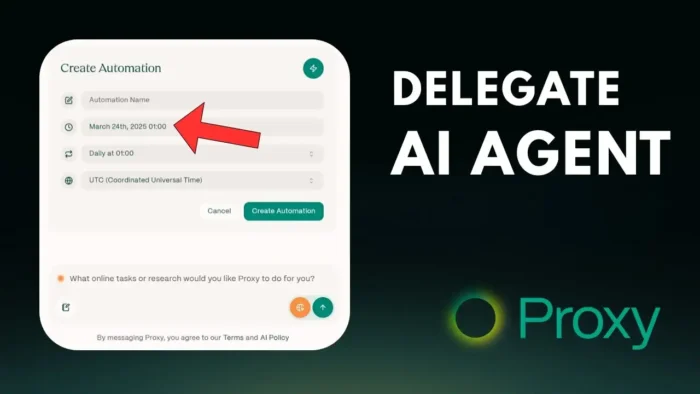
Once your prompt works, you’ll see options to share, automate, or share as template. Hit automate. Name your automation—something simple, like AI Agent News Finder. Now, set when you want the agent to run. You can start today or tomorrow, and pick the exact time. Don’t forget to set the right time zone. If you’re not sure what UTC, EST, or PST means for your local time, just Google it. For example, “6 a.m. UTC to Jakarta time.” That’s how I always double-check.
Pick how often you want the agent to run—daily, weekly, whatever fits your workflow. Once you’re done, hit create automation.
Managing Your Automations: Edit, Pause, or Remove Anytime
Your new automation shows up in the My Automations section. It’ll list the name, timing, and status. If you want to change the name, description, or schedule, just edit it. You can also pause or delete any automation if you want a break or you’re done with that task.
If you want to see what the agent did, open the session in a new tab. You’ll get a full report of what the agent found or did for you. This is handy for tracking progress or troubleshooting if something goes sideways.
Tips for Testing and Troubleshooting Your Proxy AI Agent
- Always test your prompt manually before setting up automation
- Supervise the first few runs to catch any mistakes
- Adjust the prompt if the agent isn’t doing what you want
- Double-check your time zone settings to avoid weird scheduling issues
If you ever run into issues with apps not running automatically, you might want to check how to fix apps not running on startup.
How to Make the Most Out of Proxy Automation
- Use clear, direct prompts
- Schedule tasks for off-hours to save time during your day
- Edit or pause automations if your needs change
- Use the session logs to track what your agent is doing
Automation isn’t just a time-saver—it lets you focus on more important stuff while your AI handles the routine. That’s the real win here. 😎
FAQs
How do I start automating tasks with Proxy?
Just log in, create a new chat, write your prompt, and use the automate button. Pick your schedule and you’re set.
Can I use Proxy automation for free?
Yep, automation is available for all users, not just paid plans.
What if my prompt isn’t working right?
Test it manually first. Edit until the results are what you want, then set up automation.
How do I change or stop an automation?
Go to My Automations, then edit, pause, or remove any automation you’ve set up.
What time zone should I use for scheduling?
Proxy uses standard time zones like UTC. If you’re not sure, search “your time to UTC” on Google to match it up.
Want more automation tips? Check out how to automatically create restore point every day in Windows for another way to automate your digital life. ✨