Key takeaways:
- Hikfield AI makes more realistic, cinematic videos than Runway Gen 4
- You can use photos and prompts to create movie-like scenes with effects
- Free credits are limited, so pick your shots wisely
Ever wanted to make a video that looks like it belongs in a blockbuster? AI video generators like Hikfield and Runway Gen 4 are making that possible, even for people with zero film background. But which one really brings that Hollywood magic? I gave both a spin, and here’s what I found—plus how you can try it yourself.
Comparing Hikfield AI and Runway Gen 4 for Movie-Quality Videos
So, here’s the deal. Both Hikfield and Runway Gen 4 turn your ideas into moving pictures, but the results aren’t the same. I watched side-by-side demos—Hikfield just nails the cinematic look. Think realistic lighting, smooth camera moves, and effects that feel straight out of a film. Runway isn’t bad, but Hikfield’s output is on another level.
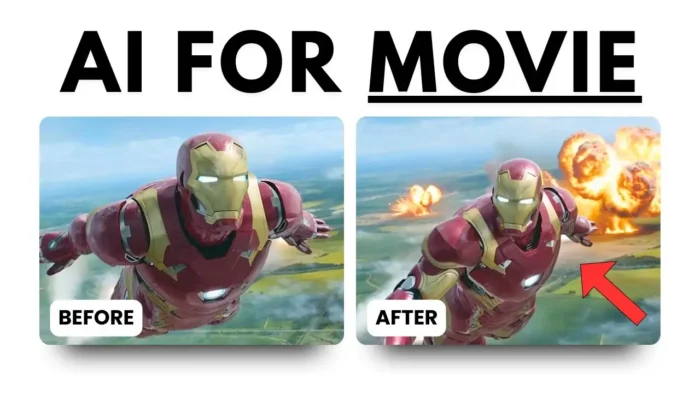
I saw an example with an explosion (yeah, the big boom kind). Runway’s version was decent, but Hikfield’s looked like it could fool someone into thinking it was shot on a real set. Even the camera could zoom in on a character’s eyes, a trick that usually takes a real camera and actor. Now, AI does it with just a photo.
How Hikfield AI Works: Photos, Prompts, and Movie Effects
Getting started is pretty easy. You sign up at hikfield.ai and get 25 free credits. Each credit lets you make a short video using your own photo and a prompt. The prompt is where the magic happens. You can say things like “add a nuclear explosion in slow motion while Iron Man keeps flying, add a shaky camera effect, and a lens flare.” The AI tries to follow your instructions and adds those movie-style touches.
There’s even an option to “enhance the prompt,” which basically means the AI will make your instructions more detailed. You can set how long the video should be, too.
The Good, the Bad, and the Weird: My First Tries with Hikfield
I tried making a video with an Iron Man photo and a dramatic explosion behind him. I asked for slow motion, shaky camera, and lens flare. The result? Well, Iron Man flew the wrong way (backwards, not forward), and the explosion didn’t really look nuclear. But the detail was wild, and the overall look was way more realistic than I expected.
No sound, though—the AI only makes silent videos for now. And sometimes, it just doesn’t follow your prompt perfectly. But for a free tool, it’s wild how close it gets.
I also tried a photo of Deadpool and Wolverine with no prompt. The AI made up its own scene, mostly just moving the camera around. Not much action, but it shows you can experiment with different styles.
Customizing Your AI Video: Styles, Effects, and Limitations
Upload a photo, pick a style—there are a bunch to choose from. You can make your video look like a gritty action flick, a dreamy fantasy, or something else. Each style changes the vibe, so play around until you get what you want.
But here’s the catch: free users only get 25 credits. That’s not a lot if you’re tweaking and testing. So, pick your best photos and ideas before you start.
If you want to add your own music or sound effects, you’ll need to use a separate video editor. Check out this list of free video editors for beginners if you need one.
Table: Hikfield AI vs Runway Gen 4
| Feature | Hikfield AI | Runway Gen 4 |
|---|---|---|
| Cinematic effects | Yes | Basic |
| Realistic lighting | Yes | Moderate |
| Camera movement | Advanced | Basic |
| Custom styles | Many | Fewer |
| Free credits | 25 | Varies |
| Sound in videos | No | No |
| Prompt enhancement | Yes | No |
Tips for Getting the Best AI Video Results
- Use high-quality, clear photos for best results
- Write detailed prompts, but keep them simple—AI can get confused
- Try different styles to see what fits your scene
- Be patient—free videos can take a long time to generate
- Edit your AI videos with a video editor if you want to add music or trim clips
Troubleshooting: What to Do If Your AI Video Looks Off
Sometimes, the AI gets things wrong—characters move the wrong way, effects look weird, or the scene just doesn’t match your prompt. If that happens:
- Double-check your prompt for clarity
- Try a different style or shorter duration
- Use a different photo
- If the video file is too large or won’t play, you might need to convert or resize the video before editing
If you run into issues with your computer while making or editing videos, like lag or crashes, you might want to check your system specs or speed up your PC’s performance.
Saving, Sharing, and Editing Your AI Videos
Once your video is ready, you can download it and share it anywhere. If you want to add music, subtitles, or more effects, use a free video editor. If you need to trim or rotate the video, here’s how to rotate videos and trim them.
Want to upload your masterpiece to Instagram from your PC? Here’s a simple guide on how to upload photos to Instagram from a computer.
If you want to make GIFs from your AI videos, check out how to convert video to GIF.
Final Thoughts: Is AI Video Generation Ready for Hollywood?
AI video tools like Hikfield and Runway Gen 4 are getting closer to movie magic, but they’re not perfect. Sometimes the effects are spot-on, sometimes they’re a little off. But for anyone who wants to make something cool without a Hollywood budget, these tools are worth a try. Just don’t expect Spielberg-level results—yet.
If you’re serious about making your videos look even better, you might want to learn about color grading or improving video quality.
🎬✨ Give it a shot and see what kind of scenes you can create. Just keep your expectations in check, and have fun with the process.
FAQs
How do I start making videos with Hikfield AI?
Sign up for a free account at hikfield.ai, upload a photo, write a prompt, and hit create. You get 25 free credits to try it out.
Can I add sound or music to my AI video?
No, the videos are silent. You’ll need to use a video editor to add music or sound effects.
Why did my video take so long to generate?
Free users are in a queue, so it can take hours or even a day for your video to finish.
What if my video doesn’t look right?
Try changing your prompt, using a different photo, or picking another style. The AI isn’t perfect and sometimes gets things wrong.
Yes, you can download and share them anywhere. If you need to resize them for a platform, see how to professionally resize videos.