Key takeaways:
- Threads can be deleted one by one or all at once in Perplexity AI
- The delete option is found in the Library menu
- Deleting all threads is permanent, so double-check before you wipe everything 🧹
If your Perplexity AI conversation list is getting out of hand, or you just want to keep things private, you might want to clear out some old threads. I’ve been there—sometimes you just want a fresh start or need to keep your chat history tidy. Here’s how you can delete threads in Perplexity AI step by step, whether you’re on desktop or mobile.
On desktop, look to the left side of your screen. On mobile, the menu is at the bottom. Tap or click the Library menu. This is where all your threads live. You’ll see a list of every conversation you’ve had in Perplexity AI.
Delete a single thread from your list
Scroll through your threads and pick the one you want to remove. Next to the thread, there’s a three-dot icon (⋮). Click it, then choose Delete thread. You’ll get a confirmation pop-up—hit Confirm and that thread is gone. Poof! 🎯
You can also open the thread first, then click the three-dot icon at the top right. Again, select Delete thread, confirm, and you’re done. Super simple.
Delete multiple threads or wipe everything
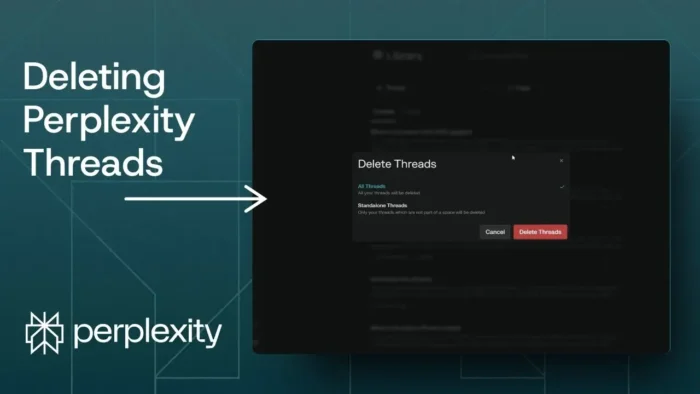
If you want to delete more than one thread—or even every thread you’ve ever made—there’s a bulk delete option. In the Library menu, look for Delete threads. This will let you select and remove multiple threads at once, or just nuke all of them.
Heads up: deleting all threads is permanent. There’s no going back. If you think you might want to check an old conversation later, maybe skip this and just delete the ones you really don’t need.
Why you might want to delete threads in Perplexity AI
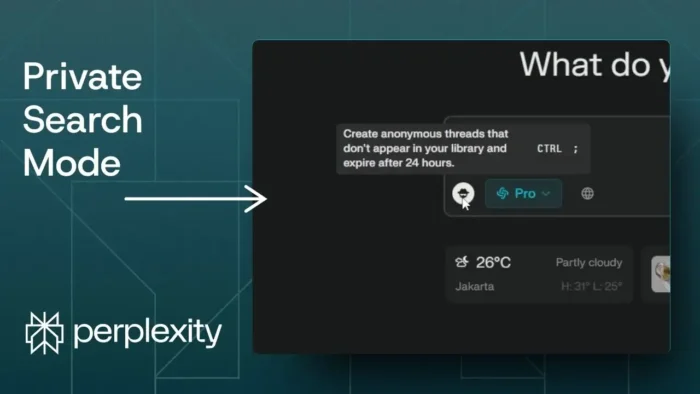
- Privacy: Don’t want anyone snooping on your old chats? Deleting threads keeps your history clean.
- Organization: If you use Perplexity AI a lot, threads pile up fast. Clearing them out makes it easier to find what matters.
- Starting fresh: Sometimes you just want a blank slate.
If you’re looking for ways to tidy up other apps, check out how to delete a chat in Microsoft Teams or how to delete your Telegram account quickly.
What happens after you delete a thread?
Once you confirm, the thread is gone from your Perplexity AI account. You can’t get it back, so make sure you don’t need any info from it before you hit delete. If you’re worried about losing something important, maybe copy out the info you need first.
Tips for managing your Perplexity AI history
- Delete threads regularly if you care about privacy
- Only bulk delete if you’re sure you don’t need any old chats
- If you want to keep some threads, delete individually
- There’s no undo, so double-check before confirming
FAQs
How do I find the delete option for threads in Perplexity AI?
Look for the three-dot icon next to a thread or at the top right when you open a thread. That’s where you’ll find the delete option.
Can I recover a thread after deleting it?
No, once a thread is deleted, it’s gone for good.
Is there a way to delete all threads at once?
Yes, use the Delete threads option in the Library menu to remove everything at once.
Will deleting threads affect my Perplexity AI account?
No, it just clears your conversation history. Your account and settings stay the same.
What if I only want to delete a few threads, not all?
Just delete them one by one using the three-dot menu next to each thread.
That’s all there is to it! If you need more guides on managing your digital life, check out how to mass delete all emails on Gmail or how to delete all tweets. Keep your space as clean as you want it—your way. 🚀