Key takeaways:
- Use Kling AI to turn any logo or product image into a cool 3D animation.
- Upload your image, paste the right prompt, and let the AI do its thing.
- Free credits are enough for several videos, but patience is required.
Ever scroll through social media and catch those oddly satisfying AI videos that just loop perfectly? Yeah, me too. I wanted to make my own using my channel’s logo, and it turns out, it’s way easier than I thought—with the right tool and a little patience.
If you’re looking to give your product or brand a fresh look, or just want to have fun with AI-generated visuals, I’ll show you how to make these videos step-by-step. All you need is a logo or image, a prompt, and a bit of time.
Table of Contents
- Setting Up Your Kling AI Account and Getting Free Credits
- Preparing Your Logo or Product Image for the AI Video
- Crafting the Right Prompt for Satisfying Motion
- Customizing Video Length and Output
- Generating the Video and Waiting for the AI to Work
- Reviewing and Downloading Your Satisfying AI Video
- Tips for Getting the Best Results from Kling AI
- Troubleshooting Common Problems with AI Video Generation
- Sharing Your AI Video and Getting Feedback
- Using Other AI Tools for Different Visual Effects
- FAQs
- How do I get free credits on Kling AI?
- What kind of images work best for AI video?
- Can I make longer videos with the free plan?
- What if my video takes too long to generate?
- Can I edit my AI video after downloading?
Setting Up Your Kling AI Account and Getting Free Credits
So, here’s the deal. Head over to klingai.com and sign up for a free account. They’ll give you about 166 credits right off the bat. That’s plenty to play around and make a handful of videos. No need to pull out your wallet yet.
Once you’re in, hit the “video” button on the dashboard. This is where the magic starts.
Preparing Your Logo or Product Image for the AI Video
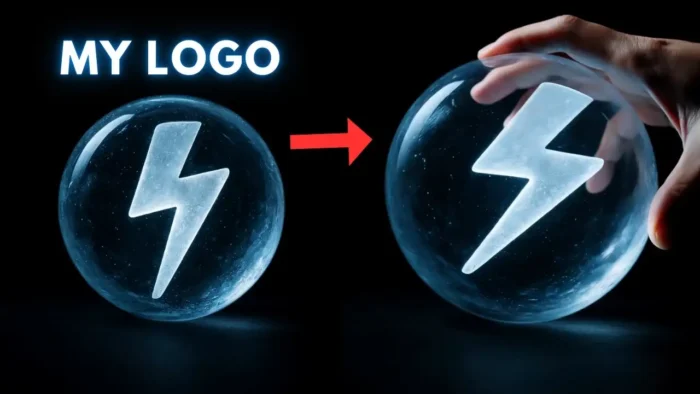
You’ll need a picture to upload. If you want to use your own logo, great. If you want to remix it, you can use something like ChatGPT or DALL-E to create a new version. I asked ChatGPT to whip up a 3D version of my logo, and it worked out pretty well.
Drag and drop your image into the upload area on Kling AI. Super simple.
If you’re working with images and want to make them pop before uploading, check out how to improve video quality in Filmora or how to make a brush in Photoshop.
Crafting the Right Prompt for Satisfying Motion
This is where you tell the AI what you want. There’s a prompt box—just paste in the prompt you want to use. If you’re not sure what to write, you can pause the video I linked above and copy the prompt from there, or grab it from the description.
You can tweak things like motion brush, negative prompts, or even the AI model, but honestly, the default settings work fine for most stuff.
Customizing Video Length and Output
Set your video duration. Five seconds is a good start, but if you want a longer loop, try ten. Just know that longer videos will take more credits and more time to render.
Free users get one output per generation, but it’s enough to see if you like what you get. If you want more variations, there’s a paid VIP option.
Generating the Video and Waiting for the AI to Work
Once everything’s set, hit “generate.” Now, here’s the catch—this is not instant. My video took about an hour to finish. So, grab a snack, work on something else, or binge a few TikToks.
If you’re impatient or want to multitask, you might want to watch video while using another app at the same time.
Reviewing and Downloading Your Satisfying AI Video
When it’s done, you’ll get a notification or see it pop up in your dashboard. Play it back. If you like what you see, download it. If not, tweak your prompt or settings and try again.
The results are pretty wild. The AI can make your logo spin, morph, or do all kinds of satisfying movements. In my case, it looked like someone was rotating a glass ball with my logo inside. Kinda mesmerizing.
If you want to edit or trim your video after, check out how to trim videos in iMovie or how to professionally resize videos.
Tips for Getting the Best Results from Kling AI
- Use high-quality images for the best output.
- Keep your prompts clear but creative.
- Don’t be afraid to experiment with different settings.
- Save your favorite prompts for next time.
If you want to loop your video perfectly, see how to loop and repeat YouTube videos.
Troubleshooting Common Problems with AI Video Generation
If the process is stuck or takes way too long, try refreshing the page or re-uploading your image. Sometimes the servers get busy.
If your video looks weird or the motion isn’t smooth, adjust your prompt or try a different image.
If you run out of credits, you can either wait for a refill or consider upgrading.
For more editing tips, check top free simple video editor software for beginner.
Sharing Your AI Video and Getting Feedback
Once you’ve got your video, it’s ready to share. Post it on social, add it to your website, or use it in your next project. If you want to upload to Instagram straight from your PC, here’s how to upload photo to Instagram from PC.
Want to know how your video is doing? Check how to see your saved password on Chrome desktop to keep your accounts safe while sharing.
Using Other AI Tools for Different Visual Effects
Kling AI is cool, but there are other tools out there for different styles or effects. If you want to experiment, try how to make 8-bit art using Microsoft Excel for a retro vibe, or how to create a chalk style in Photoshop.
If you want to make animated GIFs from your video, check how to convert video to GIF.
FAQs
How do I get free credits on Kling AI?
Sign up for a free account, and you’ll get about 166 credits to start. No payment needed.
What kind of images work best for AI video?
High-res logos or product shots with clear shapes give the best results.
Can I make longer videos with the free plan?
Yes, but longer videos use more credits and take more time to render.
What if my video takes too long to generate?
Sometimes it takes up to an hour. Just be patient or try again later.
Can I edit my AI video after downloading?
Absolutely. Use any video editor, or try top free simple video editor software for beginner for easy tweaks.
That’s how I made my own satisfying AI video. Give it a shot, and let your creativity go wild! 🎬✨