Key takeaways:
- Draw with your own style and let AI finish your art 🎨
- Results look hand-drawn, not like typical AI images
- Runs on Hugging Face and is open source
Ever wanted to sketch something and have AI finish it for you, but still keep your vibe? That’s what Gemini Code Drawing does. This tool dropped from someone at Google and honestly, it almost slipped past me. If you’re tired of AI art that looks too perfect or robotic, this is a fresh option. I’ll break down how it works, what makes it different, and how you can get started—even if you’re not a pro artist.
What Is Gemini Code Drawing and Why Should You Care
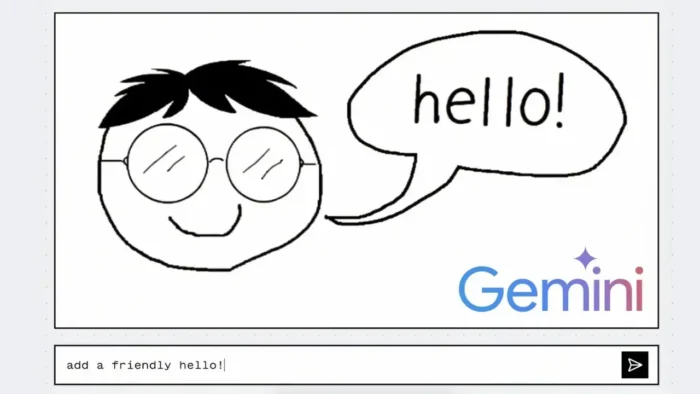
So, Gemini Code Drawing is built on Gemini 2.0’s native image generation. You draw something with your mouse or stylus, and then the AI fills in the rest. Unlike most AI art tools, this one actually tries to match your style. The result? You get images that look like you drew the whole thing, even when the AI steps in.
This is big for anyone who wants to keep that human touch in their digital sketches. If you’ve ever seen those AI images that are so clean they almost look fake, you’ll appreciate how Gemini Code Drawing keeps things natural.
How the Drawing Process Works Step by Step
Here’s how it goes down:
- Start with a blank canvas on the tool’s interface.
- Use your mouse, trackpad, or stylus to sketch something—anything.
- Ask the AI to finish your drawing or add new elements.
- The AI fills in the gaps, but it copies your line weight, quirks, and style.
You can, for example, draw a triangle with a face, then tell the AI to make more triangles. Each new triangle has its own twist, but they all look like you drew them. Or, sketch two steps of a staircase and let the AI finish the whole thing. The results aren’t perfect, but that’s the point—they look hand-drawn.
What Makes Gemini Code Drawing Stand Out From Other AI Art Tools
Most AI art tools try to make everything flawless. Gemini Code Drawing is different. It’s not about perfection. It’s about keeping that “drawn by a real person” energy.
- The AI doesn’t smooth out your lines or erase your mistakes.
- It follows your style, so if your lines are wobbly or your shapes are off, the AI keeps that vibe.
- The finished image is a mix of your work and AI, but you can’t always tell where one ends and the other begins.
If you want to see how this compares to traditional digital art, check out how to make a brush in Photoshop or how to make 8-bit art using Microsoft Excel. Those guides are all about manual control, while Gemini Code Drawing brings AI into the mix—without losing your signature touch.
Real Examples That Show Off the Tool’s Potential
Google’s demo examples are wild. Here’s what people have done:
- Draw a tree, ask the AI to add a snake around it. The snake looks like it belongs—same line style, same quirks.
- Sketch a car, ask for windows. The AI adds windows that fit your drawing, even if the car isn’t “technically” perfect.
- Multiply objects, like triangles with faces, and each one has a different expression but still matches your style.
This isn’t like asking AI to generate a photo-realistic image. It’s more like digital doodling with a smart assistant.
Why the Human Touch Matters in AI Art
A lot of AI art feels too polished. With Gemini Code Drawing, the imperfections are the feature, not a bug. The tool is great for:
- Visualization: Sketch out ideas fast, let AI fill in the blanks.
- Annotation: Add notes or highlights to images, and the AI keeps your handwriting style.
- Illustration: Make unique art that doesn’t look like every other AI-generated piece.
If you want your digital art to stand out, or if you just want to have fun doodling, this tool is worth a try.
How to Get Started With Gemini Code Drawing
You don’t need a beefy computer or fancy software. The tool is hosted on Hugging Face, which means you can run it in your browser. If you’re into open source, you can even run it locally.
Here’s what you need to do:
- Go to the Hugging Face page (link in the video description).
- Start drawing right away—no signup needed.
- Play around with different sketches and prompts.
- If you want more control, download the model and run it on your own machine.
If you’re into other creative AI tools, you might also like how to expand and extend images with DALL-E 2 AI system or how to make photos come alive.
How to Use Gemini Code Drawing for Different Creative Projects
Quick Doodles and Brainstorming
Sometimes you just want to get an idea out of your head. Open the tool, sketch a rough outline, and let the AI finish it. It’s fast, fun, and the results feel personal.
Illustration and Storyboarding
If you’re making comics or storyboards, you can sketch the main shapes and let the AI fill in the rest. It saves time and keeps your style consistent.
Teaching and Annotation
Teachers or students can use this for quick diagrams. Draw a rough shape, ask the AI to add labels or extra parts, and it all stays in your handwriting.
Social Media Content
Share your AI-assisted doodles online. Since the results look hand-drawn, people are more likely to engage. If you want to share your process, you can even record your PC screen without third-party apps.
Tips for Getting the Best Results With Gemini Code Drawing
- Start with simple shapes. The AI works best when it has a clear base to follow.
- If you want a specific style, exaggerate your lines or add unique touches.
- Don’t stress about mistakes. The AI copies your quirks, so “flaws” become part of the art.
- Try different prompts. Ask for new objects, patterns, or even text.
If you want to tweak your digital art even more, you can resize images on your PC or compress photos online before sharing.
Running Gemini Code Drawing Locally: What You Need to Know
If you’re into open source and want to run the model on your own computer:
- You’ll need Python and some basic command line skills.
- Download the model files from Hugging Face.
- Follow the setup instructions—usually just a few commands.
- Once it’s running, you get the same features as the web app, but with more privacy and maybe faster performance.
This is great if you want to use the tool for bigger projects or just don’t want to rely on the cloud.
How Gemini Code Drawing Fits Into the AI Art Scene
AI art is everywhere, but most tools focus on making things look flawless. Gemini Code Drawing is a reminder that art isn’t always about perfection. Sometimes, it’s the little mistakes and quirks that make something special.
If you’re interested in the bigger picture of AI and creativity, you might want to check out how to write and generate code using AI chatbot ChatGPT or how to harness the magic of ChatGPT conversations.
FAQs
What is Gemini Code Drawing?
Gemini Code Drawing is an AI tool for sketching and illustration. You draw something, and the AI fills in the rest, keeping your style.
Do I need to install anything to use it?
Nope, you can use it right in your browser on Hugging Face. If you want, you can also run it locally.
Does it work with a stylus or just a mouse?
It works with both. Use whatever you’re comfortable with.
Can I use it for professional projects?
Yes, especially if you want a hand-drawn look in your digital work.
Is it free?
Yes, the model is open source, so you can use it without paying.
Ready to try it? Grab your stylus (or just your mouse), sketch something weird, and see what the AI does. If you want more creative tech, check out how to make a brush in Photoshop or how to expand and extend images with DALL-E 2 AI system. Have fun drawing! ✏️