Key takeaways:
- The generate image button is hidden in the new UI
- You need to use Pro Mode and be explicit in your prompt
- Images are now generated from a new menu after searching
So, you opened Perplexity and the generate image button is just… gone? Yeah, I noticed that too. The new UI looks cleaner, but if you’re trying to make an AI image, it’s a whole different process now. Let me break down what’s changed and how you can still get your AI pics, even if it’s a bit roundabout. 🖼️
Here’s how you can still make images in Perplexity—with all the steps, tips, and a few gripes along the way.
The Generate Image Button Is Gone and the UI Is Shuffled
The old generate image button used to be right there, easy to spot. Now, it’s missing, and you won’t find it anywhere on the main page. Instead, you’ll see new tabs for answer and resources. The update makes things tidier, but it also means the image tool is buried. If you’re searching for how to get it back, you’re not alone.
You Have to Be Explicit with Your Prompts
Here’s the deal: you can’t just expect Perplexity to offer image generation unless you say exactly what you want. Type something like “generate a picture of a dog.” If you’re not clear, you’ll just get text answers or web images, not AI-generated art.
Pro Mode Is Now Required for Image Generation
This is the kicker: you have to enable Pro Mode to see the image generation option. In the past, I told everyone you didn’t need Pro Mode for this, but that’s changed. Now, if you want to make images, Pro Mode has to be on. Make sure you also have online access enabled.
- Type your prompt (e.g., “generate a picture of a dog”)
- Turn on Pro Mode
- Make sure online access is enabled
- Hit send
The New Image Generation Menu
Once you send your prompt, look for the images button that pops up in the menu. Click it, and you’ll see a mix of real and AI images. Heads up: the first images you see are just pulled from the web—they’re not generated from your prompt.
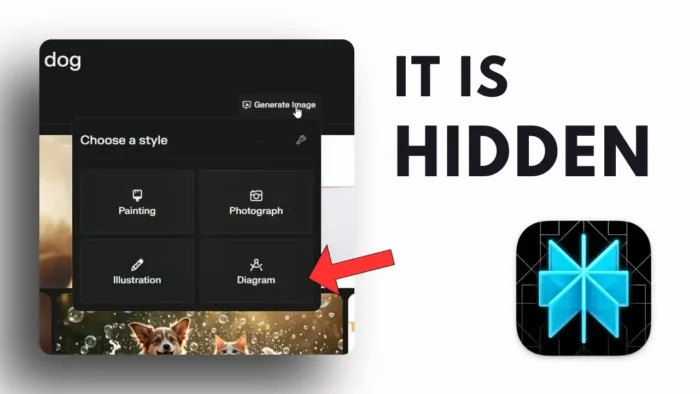
If you want true AI art, there’s another step. After you click images, a new generate button will show up. Click that, and you’ll finally get to the image generation interface.
Customizing Your AI Image
The interface lets you pick a style or tweak the prompt. It’s the usual stuff, but now it’s hidden behind a few extra clicks. Once you’re happy, submit your query and wait for the image to be created.
The Process Is Clunky, But It Works
Honestly, I’m not a fan of this update. The flow is awkward, and sometimes the generate button doesn’t even show up. It’s inconsistent, and a lot of people on X have noticed the same thing. If you’re frustrated, you’re not alone.
If you want to make your own images, just remember to be super clear in your prompt and always turn on Pro Mode. That’s the only way to get the generate button to appear in this new UI.
Troubleshooting and Tips for the New Perplexity Image Generation
Sometimes the Button Doesn’t Show Up
The new UI can be buggy. If you don’t see the generate button, try refreshing the page or tweaking your prompt. Make sure Pro Mode is on and you have online access.
You Can Only Generate Images After Searching
You won’t see the image generation option until you’ve actually searched for something. It’s not a standalone tool anymore—it’s tied to your search prompt.
Web Images vs. AI Images
Don’t get confused by the first set of images. Those are just web results. The real AI generation starts after you hit the generate button in the images tab.
Customizing Styles
Once you’re in the image generator, you can pick different styles or enter a custom prompt. It’s flexible, just a bit hidden.
Waiting for Updates
The current setup isn’t ideal. I’m hoping Perplexity brings back a more direct way to generate images, or at least makes the process less confusing. If there’s a new update, I’ll cover it.
Related Guides for Visual Tools and Image Editing
If you’re looking for more ways to work with images, you might want to check out:
- How to resize picture on PC
- How to save images from Instagram PC
- How to insert multiple images in Paint
- How to upload photo to Instagram from PC
- How to make brush in Photoshop
- How to make 8-bit art using Microsoft Excel
FAQs
It’s hidden in the new UI. You have to enable Pro Mode, be explicit in your prompt, and look for the images tab after searching.
Why do I only see web images and not AI-generated images?
The first images are just pulled from the web. To get AI images, you need to click the generate button after opening the images tab.
Do I need Pro Mode to generate images now?
Yes, Pro Mode is required for the image generation feature in the new UI.
Try refreshing the page, changing your prompt, or making sure Pro Mode and online access are enabled.
Can I customize the style of my AI image?
Yes, once you’re in the generator, you can pick a style or enter a custom prompt for different results.
That’s the new way to generate images in Perplexity. Not perfect, but it gets the job done. If you need more visual tricks, check out some of my other guides above. If you run into more issues, drop a comment or look out for updates—I’ll keep you posted! 🚀