Key takeaways:
- Grok AI now edits photos with prompts, just like Google’s tool
- You get multiple results at once, so picking the best is easy
- Grok’s edits sometimes look more natural than Google’s
Editing photos with AI is getting wild. Google’s AI Studio was the big name for prompt-based image edits, but now Grok from xAI is here, and honestly, it’s bringing some heat. If you want to change a shirt, swap hair color, or clean up a background, you can do it just by typing what you want. The cool part? Grok lets you see a couple of results at the same time, so you can actually choose what looks best. This post breaks down how to use Grok for photo edits, how it stacks up against Google, and why it might be your new favorite tool.
Table of Contents
- Grok AI’s Photo Editing Feature Is Here and It’s Actually Good
- How to Use Grok for Editing Your Photos
- Grok vs Google AI Studio: What’s Different?
- Real-World Edits: Changing Hair, Adding Accessories, Removing People
- What Model Is Grok Using?
- Why Grok Is a Real Threat to Google’s AI Studio
- Saving and Sharing Your Edited Photos
- AI Photo Editing Is Only Getting Better
- How do I access Grok’s photo editing feature?
- Can Grok really beat Google AI Studio?
- What kind of edits can Grok do?
- Is Grok’s photo editing free?
- Can I use Grok-edited photos on social media?
Grok AI’s Photo Editing Feature Is Here and It’s Actually Good
So, I just tried out Grok’s new image editing feature. It’s a lot like what Google AI Studio does—just upload a photo, type what you want to change, and let the AI do its thing. But Grok has a few tricks that make it stand out.
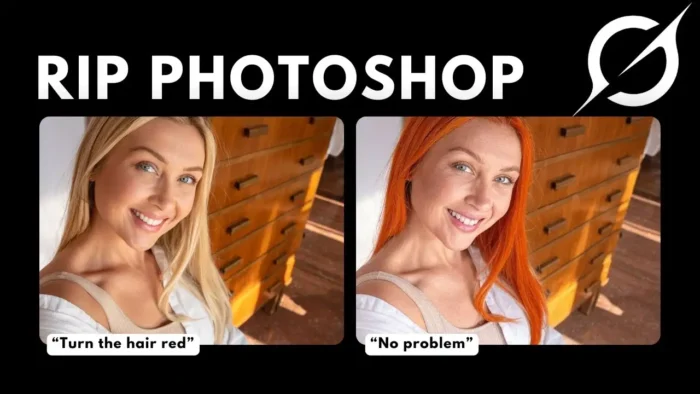
You start by going to x.com (yeah, that’s Twitter now), hit the Grok menu, and you’re in. The interface is simple—upload your image, type your prompt, and wait for the magic. For example, I grabbed a photo of a woman with blonde hair and asked Grok to make her hair red. In seconds, I got two versions back. Both looked solid, but one had a weird brightness filter that made it less natural. The other? Nailed it.
What’s cool is you can compare both results side by side. Google’s tool usually spits out just one version, so you’re kind of stuck with what it gives you. Grok gives you options, and that’s a big deal if you care about picking the best edit.
If you’re into AI photo editing, you might also want to check out how to professionally edit photos for some extra tips.
How to Use Grok for Editing Your Photos
Here’s the step-by-step:
- Go to x.com and log into your account
- Click the Grok menu
- Hit the image edit button
- Upload your photo
- Type what you want to change (“make hair red,” “add a necklace,” “change shirt to formal,” etc.)
- Wait a few seconds
- Compare the two results and pick your favorite
- Download, copy, or post the edited image
You’ll see an edit button after your image is processed, which makes it clear this feature is all about photo editing. You can keep tweaking, like adding accessories or removing stuff from the background.
If you need to resize images on your PC, there are some handy guides for that too.
Grok vs Google AI Studio: What’s Different?
Let’s break it down in a quick table:
| Feature | Grok AI | Google AI Studio |
|---|---|---|
| Multiple results | Yes (side by side) | No (one at a time) |
| Edit with prompts | Yes | Yes |
| Download/copy/post | Yes | Yes |
| Interface | Simple, fast | Simple, but slower |
| Model used | Likely Flux | Not specified |
| Natural look | Sometimes better | Sometimes flat |
With Grok, you get two edits at once, which saves time and lets you pick the best. Sometimes, the colors or lighting are more natural than Google’s edits, which can look a little filtered or fake.
If you’re running into file size issues after editing, here’s how to fix “file too large for USB drive”—super useful if you’re saving a lot of high-res images.
Real-World Edits: Changing Hair, Adding Accessories, Removing People
I tried a bunch of prompts, and Grok handled them all. Changing hair color? Easy. Adding a necklace? Took a few seconds. Removing people from a busy background? Grok actually made it look more natural than the original photo sometimes, even filling in patterns on the floor.
For example, I uploaded a selfie with a crowd in the background and asked Grok to remove the people. The result was clean, and the background looked untouched. Google’s tool sometimes leaves weird artifacts or blurs, but Grok’s output was usable right away.
If you want to get creative, you can make your own photo collages with Canva and then edit them with Grok for that extra touch.
What Model Is Grok Using?
Grok probably uses the Flux model. That’s what powers most of Grok’s AI features right now. The results feel fast and the edits are usually sharp. Sometimes, you’ll notice a little extra brightness or a filter effect, but you can always pick the more natural version.
If you need to fix red eyes in photos, you can always clean up your AI edits with traditional tools too.
Why Grok Is a Real Threat to Google’s AI Studio
Grok isn’t just copying Google—it’s pushing things forward. The side-by-side results make a huge difference for anyone who wants control over their edits. Plus, the interface is quick and doesn’t feel bloated.
Google’s AI Studio is still solid, but if you want more options and sometimes better results, Grok is worth a shot. If you’re already using x.com for other stuff, it’s right there. And if you’re looking for more ways to edit and modify images, you can mix Grok’s edits with classic software like Photoshop.
Saving and Sharing Your Edited Photos
After you pick your favorite edit, you can download it, copy it, or post it directly to your x.com account. If you want to keep your files organized, check out how to name a USB flash drive so you never lose track of your edits.
You can also compress your photos online if you want to save space or share them faster.
AI Photo Editing Is Only Getting Better
This is just the start. Grok’s photo editing is already solid, and it’s only going to get more advanced. Expect more tools, better results, and even more competition with Google AI Studio, Chub Cloud, and Gemini.
If you’re into AI tools, you’ll want to keep an eye on this space. And if you want to upload photos to Instagram from your PC, you can use your Grok-edited images for your next post.
FAQs
How do I access Grok’s photo editing feature?
Go to x.com, log in, open the Grok menu, and use the image edit button. Upload your photo, type your prompt, and you’ll get two edits to compare.
Can Grok really beat Google AI Studio?
Sometimes, yes. Grok gives you multiple results at once and often looks more natural. But both tools have their strengths.
What kind of edits can Grok do?
You can change hair color, add accessories, swap outfits, or remove stuff from the background. Just type what you want and see what happens.
Is Grok’s photo editing free?
Right now, it’s available to users on x.com. There may be limits or paid features in the future, but you can try it out for free.
Absolutely. Download your favorite edit and upload it anywhere—Instagram, Facebook, or even back to x.com. If you need to save images from Instagram, there’s a guide for that too.
👾✨