Key takeaways:
- Create branded images with your own style using AI, totally free
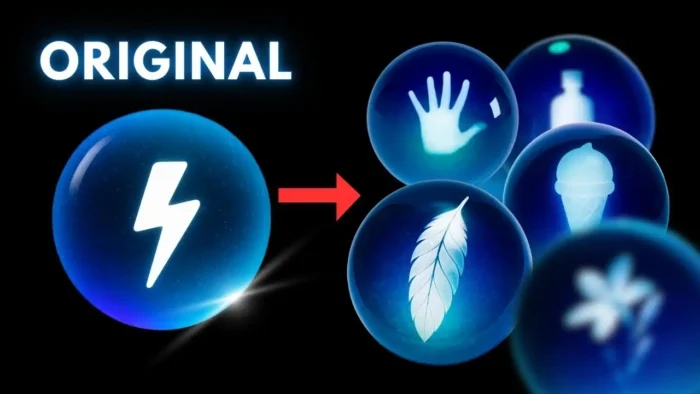
- Only need one logo or style image to get started
- Generate as many on-brand icons or pictures as you want, no design skills needed
Ever wish you could make a bunch of icons or images that match your brand, but don’t want to spend hours in Photoshop? Or maybe you’re tired of every AI art generator giving you random results that don’t fit your vibe. I’ve been there. The good news: there’s a feature in Regraph AI that lets you keep your style, colors, and branding locked in, and it’s totally free. I’ll show you how to use it—and why it’s honestly slept on.
Setting Up Your Free Account and Getting Extra Credits
You don’t need to pay for this. Just sign up for a free account on Regraph AI. If you use a referral link (like the one in the video description), you’ll get some bonus credits to play with. That’s enough for a solid test drive.
Uploading Your Logo or Style Image
Before you start, get your logo or any image that shows your style or color scheme. You can use just one, but if you have more, upload up to three per day as a free user. For most people, one is plenty.
Creating a Custom Style in Regraph AI
Once you’re in, hit “create new project.” Pick “image,” then select the current Regraph model (like version three). Click “create style.” Name your style—maybe your channel or brand name. Drag your logo or style image into the upload box.
Now, you’ll see options to fine-tune your style and test it out. Want a polar bear in your style? Type it in. You can pick from photo realism, illustration, vector art, or icon—or just tweak the prompt until you get something you like.
Testing and Adjusting Your Style
You can keep generating different images with the same style until you’re happy. Try switching from vector art to icon, or adjust the prompt. When you get a result that nails your brand’s look, hit “add my styles.” Now you’ve got a reusable style profile.
Generating Multiple Branded Images at Once
Ready to go big? Use the “image set” feature. Pick your style, then type in a list of things you want—like polar bear, panda, cat, dog, bunny, seal. You can change the size or orientation, but the default usually works.
Send the prompt, and let Regraph AI do its thing. In a few seconds, you’ll have a set of icons or images that all match your brand. No manual design work, no stress.
Why This Feature Is So Useful for Creators and Small Brands
I’m not a designer, but I want my stuff to look pro. This feature means you only design once—just your logo or main style image—and then AI takes care of the rest. You can use these images for your website, YouTube stickers, merch, or anything else.
If you’re into customizing your digital stuff, check out how to make a brush in Photoshop or how to resize a picture on PC. These guides can help if you want to tweak your AI-generated images even more.
Tips for Getting the Best Results
- Use a high-quality logo or style image
- Try different prompts and styles until you find what fits
- Don’t be afraid to upload more style images if you want more variety
- Keep your prompts simple for icons, more detailed for illustrations
What Else Can You Do With These Images?
- Website icons and banners
- Social media profile pics and stickers
- Merch designs
- Presentation graphics
- YouTube channel art
Want to use your new images in other projects? Here’s how to upload a photo to Instagram from PC and how to save a picture as PDF.
Troubleshooting and Limitations
Free users can upload up to three images a day for style creation. Usually, one is enough, but if you hit the limit, just wait until tomorrow. Also, avoid using text in your prompts for cleaner icons. You can tweak colors if you want, but the AI usually sticks pretty close to your original palette.
If you want to make your images even sharper, try upscaling images without losing quality.
Reusing Your Style for Future Projects
Once you’ve saved your style, you can use it again and again. Next time you need a new icon or illustration, just pick your style and type your prompt. No need to start over.
Wrapping Up
This feature is seriously underrated. It saves time, keeps your brand consistent, and doesn’t cost a dime. If you’re tired of generic AI art or just want to make your stuff look more pro, give it a shot. Oh, and if you want to get even more out of your digital workflow, check out how to make 8-bit art using Microsoft Excel for another creative hack.
FAQs
How many style images can I upload for free?
You can upload up to three images per day as a free user. One is usually enough for most styles.
Can I use this for commercial projects?
Yes, as long as you have the rights to your original logo or style image.
Does this work for photos, or just icons and illustrations?
It works for all types—just pick the right style option (photo realism, illustration, vector art, icon).
What if I want to change the color scheme?
You can tweak the color settings in the style editor, or upload a new style image with your updated colors.
Do I need any design skills to use this?
Nope. The AI handles the design part. You just need to upload your style and type what you want.