Key takeaways:
- Use Gemini 2.5 Pro for free with Google AI Studio
- No image output, but it can process images as input
- Great for coding, math, and science tasks
So, Google just dropped the Gemini 2.5 Pro model and it’s already causing a buzz in the AI world. If you’re curious about how to use this new AI for free—especially for coding, math, or science—I’ve got you covered. I’ll break down the steps, give you the real scoop on what it can and can’t do, and show you how to get started without spending a dime.
Forget about pricey subscriptions or waiting for developer access. There’s a way to try out Gemini 2.5 Pro right now, and you don’t need to be a tech wizard. By the end of this, you’ll know exactly where to go, what to click, and how to get the most out of this new AI model.
Table of Contents
- What Makes Gemini 2.5 Pro Stand Out and Why People Are Talking
- How to Access Gemini 2.5 Pro for Free Without Paying for Gemini Advanced
- What You Can and Can’t Do With Gemini 2.5 Pro
- Real-World Test: Coding and SVG Generation
- The Catch: No Image Generation Yet
- Why You Should Care About Reasoning Models
- Tips for Getting the Most Out of Gemini 2.5 Pro
- What’s Next for Gemini 2.5 Pro
- FAQs
- How do I use Gemini 2.5 Pro for free?
- Can Gemini 2.5 Pro generate images?
- Is Gemini 2.5 Pro better than GPT-4.5?
- Can I use Gemini 2.5 Pro for coding projects?
- Do I need a subscription to try Gemini 2.5 Pro?
What Makes Gemini 2.5 Pro Stand Out and Why People Are Talking
Gemini 2.5 Pro is the latest AI model from Google. It’s designed to be sharp with coding, math, and science. This isn’t just hype—the model is already topping the LM Arena leaderboard, beating out big names like GPT-4.5 and Groq. If you’re into AI benchmarks, that’s a big deal. But keep in mind, leaderboard results can be cherry-picked, so real-world results might feel a little closer to other top models.
The cool part? Gemini 2.5 Pro is a reasoning model. That means it tries to break down your question and think through the answer, not just spit out a quick reply. If you’ve used OpenAI’s O3 mini or DeepSeek R1, you know the vibe.
How to Access Gemini 2.5 Pro for Free Without Paying for Gemini Advanced
Here’s the good news: you don’t need to pay for the Gemini Advanced subscription to try this out. All you need is Google AI Studio.
Step-by-step: Using Google AI Studio to Access Gemini 2.5 Pro
- Open your browser and search for Google AI Studio.
- Go to ai.google.com/studio or just type “Google AI Studio” into your search bar.
- Sign in with your Google account.
- On the left, look for the model selector. Choose Gemini 2.5 Pro (experimental).
- Start typing your prompt and hit enter.
That’s it! No fees, no waiting list. Just straight-up access to the latest AI model.
If you’re new to AI tools and want to keep your browser running smooth, check out how to make Chrome consume less memory—it can help if you’re running heavy tabs with AI Studio.
What You Can and Can’t Do With Gemini 2.5 Pro
What Works Well
- Coding: You can ask it to generate code, debug, or even build simple games. For example, I got it to spin up a basic 3D shooting game in the browser with just one prompt.
- Math and Science: It handles calculations and explanations pretty well.
- Reasoning: It tries to break down your question and give a logical answer.
What’s Not There Yet
- Image Output: You can’t generate images with Gemini 2.5 Pro. You can send images as input, but the output will always be text.
- Tricky Logic: Some logic puzzles or pattern questions still trip it up, just like other AI models.
- Speed: It’s a bit slower than some models like Sonnet, but faster than others like O3 or R1.
If you want to record your screen while testing Gemini 2.5 Pro, here’s how to record PC screen without third-party apps.
Real-World Test: Coding and SVG Generation
I ran a few tests to see what Gemini 2.5 Pro can actually do. Here’s what happened:
- Coding Test: I asked it to build a 3D browser game. It broke down the instructions and delivered a playable (but simple) game. If you want more features, just add more details to your prompt.
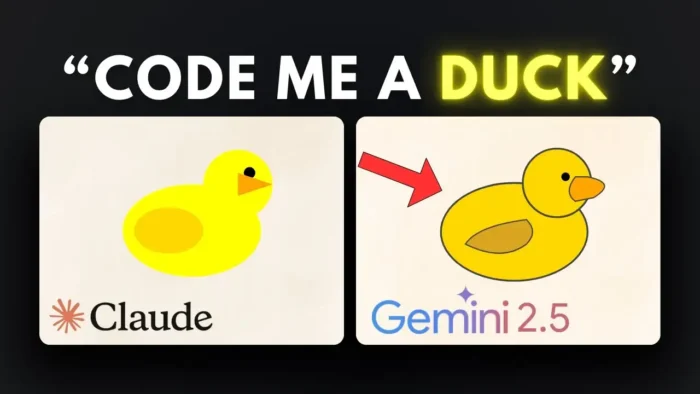
- SVG Image Test: I asked for SVG code to draw a duck. The result from Gemini 2.5 Pro was more detailed and accurate than what I got from Sonnet. The code was longer, but the duck looked way better.
If you’re into SVG or want to export your own designs, you might want to see how to export a SVG in GIMP.
The Catch: No Image Generation Yet
Right now, Gemini 2.5 Pro doesn’t generate images as output. You can upload an image and ask questions about it, but you won’t get an image back. If you need image generation, you’ll have to wait or try another model.
Why You Should Care About Reasoning Models
Reasoning models are all about breaking down your request and giving you a step-by-step answer. This is super useful for coding, troubleshooting, or any task where you want more than just a basic reply. It’s not perfect yet—some logic puzzles still trip it up—but it’s getting better.
If you want to make your workflow even smoother, try how to use emojis on Windows 10 PC to spice up your prompts or notes.
Tips for Getting the Most Out of Gemini 2.5 Pro
- Be specific: The more details you give, the better the result. For coding, mention the language, framework, and any features you want.
- Use it for learning: It’s great for quick explanations or code reviews.
- Don’t expect miracles: Some logic or pattern questions might still get a generic answer.
If you’re running into browser issues or want to clear up space, check out how to clear cache Windows 10.
What’s Next for Gemini 2.5 Pro
Right now, there’s no public pricing for developers, but it’s likely coming soon. Expect to see more apps and tools using Gemini 2.5 Pro in the future. For now, Google AI Studio is your free ticket.
FAQs
How do I use Gemini 2.5 Pro for free?
Just go to Google AI Studio, log in, pick Gemini 2.5 Pro (experimental), and start chatting. No payment needed.
Can Gemini 2.5 Pro generate images?
No, you can send images as input, but you’ll only get text output.
Is Gemini 2.5 Pro better than GPT-4.5?
On some benchmarks, yes, but real-world results can be similar. It’s especially strong with coding and reasoning.
Can I use Gemini 2.5 Pro for coding projects?
Yes, it’s great for generating code, debugging, and even building simple games.
Do I need a subscription to try Gemini 2.5 Pro?
No, just use Google AI Studio for free access.
Ready to try it? Open Google AI Studio and see what Gemini 2.5 Pro can do for you. 🚀