Key takeaways:
- Filmora AI can make background music that matches your video’s vibe
- Two ways: manual AI music or smart background music generation
- Credits are needed for both, but you get quick, ready-to-use tracks 🎵
Making background music for your videos shouldn’t be a headache. If you’re tired of searching for the right track or dealing with copyright drama, Filmora’s AI music features might be your new best friend. I’ll break down how to use both the classic and the new smart AI music tools in Filmora, so you can get background music that actually fits your content—no music skills needed.
Table of Contents
- Getting Started With Filmora’s AI Music Tools Is Super Simple
- Classic AI Music Generation: Pick Your Mood, Genre, and Theme
- What’s Great (and Not So Great) About Classic AI Music
- Smart Background Music Generation: Let AI Watch Your Video and Decide
- Waiting for the AI to Cook Up Your Track
- Credits and the Business Side of Filmora’s AI Features
- Pro Tips for Using Filmora AI Music Like a Boss
- Table: Classic AI Music vs Smart Background Music Generation
- Wrapping Up: Why Filmora AI Music Is Worth Trying
- FAQs
- How many credits does it take to generate AI music in Filmora?
- Can I use the generated music in other projects?
- Does the AI music sound unique every time?
- How long does it take to generate a track?
- Is there a way to make the AI music fit my video perfectly?
Getting Started With Filmora’s AI Music Tools Is Super Simple
Filmora’s AI music tools are built right into the editor. You don’t need extra plugins or complicated setups. Just open your project, and you’re ready to roll.
I usually start by heading to the audio section. There’s a dedicated AI music option, and it’s honestly as easy as picking your mood and letting the tool do its thing. If you’re new to Filmora, check out how to know if Filmora is registered so you don’t run into any annoying restrictions.
Classic AI Music Generation: Pick Your Mood, Genre, and Theme
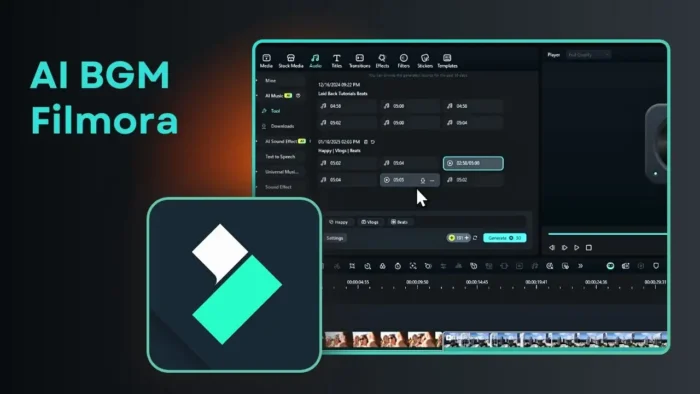
The classic AI music feature lets you customize a track by setting the mood, genre, and even the theme. Here’s how I do it:
- Go to the audio section and find AI music
- Choose a mood like happy or chill
- Pick a genre—beats, pop, whatever fits
- Set the length and tempo if you want to tweak it
You get to generate up to six tracks at once, and it only costs the same amount of credits as generating one. That’s a nice hack—always max out the number of tracks so you have options.
Once the tracks are generated (usually less than a minute), you can preview and download them. They’ll show up in your Filmora library, ready for any project. If you want to reuse a track later, just drag and drop it onto your timeline.
What’s Great (and Not So Great) About Classic AI Music
I’ve noticed the tracks are different, but after a while, they can start to feel a bit similar. The composition style repeats, but for most videos, it gets the job done. If you want to tweak your audio further, Filmora also has audio crossfade effects that can help smooth transitions between clips.
Smart Background Music Generation: Let AI Watch Your Video and Decide
Now for the cool new part: Filmora’s smart background music generation. This one takes things to another level. Instead of you picking the mood, the AI analyzes your video and creates a track that fits the content.
Here’s how I use it:
- Remove any existing music from your timeline
- Click on the smart background music generation feature
- The AI will scan your video and make a track that matches what’s happening on screen
It costs credits (usually less than the classic method), but the result is a track that feels like it was made for your video. I tried it with different clips—people eating ice cream, drone shots of buildings, rice fields—and every time, the music matched the visuals in a way I probably wouldn’t have thought of myself.
Waiting for the AI to Cook Up Your Track
The generation process depends on your video length. A 10-second clip takes about a minute, so longer videos might need more time. But honestly, it’s way faster than hunting for royalty-free music online.
Once it’s done, the track drops right onto your timeline. You can play it back with your video and see how it fits. If you don’t like the vibe, just try another video or regenerate.
Credits and the Business Side of Filmora’s AI Features
Both AI music tools use credits. You get a certain number with your account, but when you run out, you’ll need to buy more. I get why Filmora does this—it’s a smart move for them, but it’s also a timesaver for creators. You don’t have to stress about music licensing or editing tracks to fit your video length.
If you’re looking to improve your video quality in Filmora, pairing good music with crisp visuals is a solid move.
Pro Tips for Using Filmora AI Music Like a Boss
- Always generate the max number of tracks for your credits
- Test both classic and smart AI music to see what fits better
- Download and save tracks you like for future projects
- Use the audio crossfade effect for smoother transitions
- If you need to record your own sounds, Filmora also lets you record your desktop screen
Table: Classic AI Music vs Smart Background Music Generation
| Feature | Classic AI Music | Smart Background Music Generation |
|---|---|---|
| User picks mood/genre/theme | Yes | No, AI analyzes video |
| Number of tracks per generation | Up to 6 | 1 per video |
| Credit cost | Higher, but per batch | Lower per use |
| Fits video automatically | No, manual selection | Yes, matches video content |
| Customization | Mood, genre, tempo | None, fully automated |
| Best for | Quick options, variety | Seamless fit with visuals |
Wrapping Up: Why Filmora AI Music Is Worth Trying
If you’re making videos for YouTube, TikTok, or any social platform, having the right background music can make your content pop. Filmora’s AI music tools are fast, easy, and take the guesswork out of picking tracks. You don’t need to know music theory or spend hours searching for copyright-free songs.
Want more Filmora tips? Check out how to add text in Filmora or how to make a zoom effect in Filmora.
FAQs
How many credits does it take to generate AI music in Filmora?
It depends on the tool. Classic AI music uses more credits per batch (but you get up to six tracks), while smart background music generation usually costs less per use.
Can I use the generated music in other projects?
Yes, once you download the track, it’s in your Filmora library and you can reuse it for any project.
Does the AI music sound unique every time?
Mostly, but after a while, you might notice some tracks have a similar vibe. For most uses, the variety is enough.
How long does it take to generate a track?
Short videos (around 10 seconds) take about a minute. Longer videos will take more time.
Is there a way to make the AI music fit my video perfectly?
The smart background music generation feature is designed for that—it analyzes your video and makes music that matches the content automatically.