Key takeaways:
- Uno AI lets you combine objects from different photos into one image
- It keeps facial details and object styles pretty accurate
- You can try it free on Hugging Face, but you’ll need a strong PC for local use
Ever wanted to put your favorite bag, hat, or outfit onto a photo of yourself—without spending hours in Photoshop? 🧢👗 Now there’s a tool for that. ByteDance (the TikTok company) just dropped a new AI called Uno, and it’s wild. This model can grab objects from one photo and place them into another, keeping the results looking super real.
If you’re tired of clunky editing apps or want to try something new in AI photo editing, I’ll show you how Uno works, what it can do, and how you can start playing with it today.
Table of Contents
- Uno AI Is All About Merging Objects from Different Photos
- How Uno Stacks Up Against Other AI Models
- What Can You Actually Do with Uno AI?
- Getting Started: How to Use Uno AI for Free
- Real-World Results: What to Expect
- Why This Is a Big Deal for Creators and Businesses
- How Does Uno AI Actually Work?
- Tips for Best Results with Uno AI
- What’s Next for AI Photo Editing?
- FAQs
- How do I use Uno AI if my computer isn’t powerful?
- Can I run Uno AI on my own PC?
- Does Uno AI work with any kind of photo?
- Is Uno AI free?
- Will this tech show up in other apps?
Uno AI Is All About Merging Objects from Different Photos
Uno isn’t your regular face-swapper. This thing can pull a dress from one image and put it on someone in another, or make a cat wear a hat. The tech comes from ByteDance, and it’s open source, so you can even run it on your own PC if you’ve got the hardware.
The main idea: upload multiple reference images, pick what you want to combine, and Uno does the rest. It’s not just about faces—objects, styles, and even the background can be merged.
How Uno Stacks Up Against Other AI Models
You might’ve seen Infinite U before, another ByteDance model that puts your face into different scenes or outfits. But Uno is a step ahead. Here’s a quick breakdown:
| Feature | Infinite U | Uno AI |
|---|---|---|
| Main Use | Face swapping, scene changes | Merging objects from any photo |
| Detail Kept | Facial details | Faces + objects + style |
| Open Source? | Yes | Yes |
| Needs GPU? | Yes | Yes, even more so |
Uno’s trick is keeping both the face and the new object looking real together. No weird edges, no cartoonish blends.
What Can You Actually Do with Uno AI?
- Put a dress, hat, or bag from one photo onto a person in another
- Combine objects from up to four different images
- Keep facial features sharp, so it doesn’t look fake
- Transfer style, but that’s more like a bonus than the main feature
Some examples from the official paper:
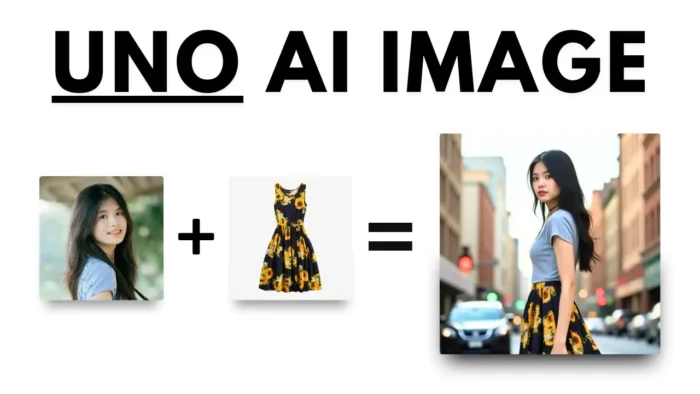
- A woman’s photo + a sunflower dress = a new photo of her in that dress
- A cat’s photo + a hat = a cat wearing that hat
- French fries + eggplant = a mashup that actually looks real
If you want to try something similar without AI, check out how to put a transparent image over another image in Paint.
Getting Started: How to Use Uno AI for Free
Uno is open source, but running it locally is a beast—think beefy GPU and lots of RAM. For most people, the easiest way is to use the demo on Hugging Face.
Here’s how it works:
- Go to the Uno AI demo page on Hugging Face (link’s in the YouTube description)
- Upload up to four reference images (say, a person and a dress)
- Add a text prompt if you want (like “woman in the city”)
- Tweak settings if you want, but defaults are fine
- Click Generate and wait for the magic
Heads up: if you’re on a free account, it might take a while, since you’re sharing GPU time with others.
Real-World Results: What to Expect
The results are impressive, but not always perfect. You’ll notice:
- The main object (like a dress or hat) shows up in the final image, looking like it belongs
- Faces stay sharp and recognizable
- Sometimes small details or backgrounds aren’t 100% accurate, but it’s usually close enough for social posts or mockups
If you’re looking to do more with your photos, you might want to blur faces in Filmora or remove fisheye distortion.
Why This Is a Big Deal for Creators and Businesses
Uno AI isn’t just for fun. Think about:
- Fashion brands showing new looks without reshoots
- E-commerce stores previewing products on models
- Social media creators making wild edits for engagement
- Anyone who wants to combine images without advanced editing skills
And since it’s open source, expect to see this tech pop up in apps like Recraft or Lumalabs soon.
How Does Uno AI Actually Work?
Uno uses deep learning to analyze each reference image, figure out what’s important (like faces, objects, and styles), and then blend them together. It’s trained to keep things looking natural, so you don’t get those weird, uncanny results you sometimes see with older AI.
You can even specify the style or prompt, but the model’s real strength is object transfer.
Tips for Best Results with Uno AI
- Use high-quality, well-lit photos for references
- Make sure the objects you want to transfer are clear and not blocked
- Try different prompts if the first result isn’t what you want
- Be patient—free demos can be slow
If you’re working with lots of photos, check out how to transfer photos from email to USB stick or how to transfer big files to USB stick.
What’s Next for AI Photo Editing?
Uno is just the start. As more platforms adopt this tech, expect:
- Faster, more accurate object transfers
- Integration with popular editing apps
- More control over style, lighting, and background
If you want to try other creative photo tricks, learn how to make 8-bit art using Microsoft Excel or upscale images without losing quality.
FAQs
How do I use Uno AI if my computer isn’t powerful?
You can use the online demo on Hugging Face. Just upload your images and wait for the result.
Can I run Uno AI on my own PC?
Yes, but you’ll need a strong GPU and enough RAM. It’s open source, so you can download the model weights.
Does Uno AI work with any kind of photo?
It works best with clear, high-res images where the objects you want to transfer are easy to spot.
Is Uno AI free?
The model is open source and free, but cloud demos may have limits or queues.
Will this tech show up in other apps?
Definitely. Apps like Recraft and Lumalabs are likely to add this kind of feature soon.