Key takeaways:
- Run open-source AI models offline on your computer
- Use LM Studio for chatting with your docs, not just PDFs
- No internet, no problem—your files stay private
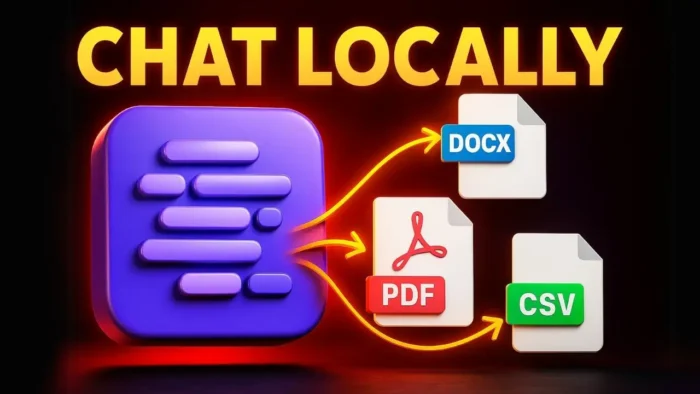
Ever wanted to chat with a document but don’t want your stuff sent to the cloud? Maybe you just want to keep things local, or your internet is down. I’ve been there. This guide is all about running AI models offline, so you can ask questions about your files—no web connection needed.
You’ll see how free tools like LM Studio make this easy, even on a basic laptop. I’ll walk you through the setup, what works (and what doesn’t), and toss in some tips for handling different file types. Ready to keep your data on your own device? Let’s get into it.
Table of Contents
- Why Go Offline for Document Chatting
- What You Need to Run AI Offline
- Meet LM Studio: The Offline AI Chat App
- Troubleshooting and Real Talk
- Comparing LM Studio and Jan AI
- Why Not Use Cloud AI?
- Tips for Smooth Offline AI Use
- What About Security?
- FAQs
- Can I use LM Studio on a really old laptop?
- Does it work with images or just text?
- Why can’t the AI read my document?
- Is this totally private?
- What if my file is too big to move?
Why Go Offline for Document Chatting
I like privacy. When you chat with a doc using cloud AI, your files leave your computer. That’s not always cool. Offline tools let you keep everything on your own machine, and you don’t even need a fast internet connection. Plus, it’s usually faster—no waiting for uploads or server responses.
What You Need to Run AI Offline
You don’t need a monster PC. Some models are just 300 MB, so even an old laptop can handle it. The real trick is picking the right software and model. Here’s the basic checklist:
- A Windows, Mac, or Linux computer
- Enough storage for AI models (hundreds of MB to a few GB)
- LM Studio app (free)
- Your document (PDF, DOCX, TXT, even images if you want)
If you’re moving files between devices, check out how to transfer big files to USB stick or how to transfer files from tablet to USB.
Meet LM Studio: The Offline AI Chat App
I tried a few apps, but LM Studio is my go-to. It’s open source, works on most computers, and supports more than just PDFs. Here’s how I set it up:
Step 1: Download and Install LM Studio
Go to lmstudio.ai and grab the installer for your system. The setup is basic—just hit next a few times, wait for it to finish, and you’re in. No weird options or bloat.
Step 2: Pick the Right AI Model
Open LM Studio. There’s a “discover” menu where you can browse models. I like to enable “best match” so the app suggests models that fit my computer. Some models are huge and need a strong GPU, but plenty of smaller ones work fine on a regular laptop.
- Yellow eye icon = vision support (for images)
- Warning icon = too big for your system
If you’re not sure about your computer specs, here’s a guide on how to check them.
Step 3: Download a Model
Just hit the download button on the model you want. It’ll show progress in the “downloads” tab. Once it’s done, you’ll see it in “my models.”
Step 4: Load the Model and Start Chatting
Head to the “chat” tab, pick your model, and wait for it to load. Might take a minute, especially for bigger models. Once it’s ready, you’re set.
Step 5: Upload Your Document
Click the upload icon. LM Studio lets you pick from PDFs, DOCX, TXT, Excel, and more. That’s a big upgrade over some other tools that only handle PDFs.
If you need to convert a PDF to Word or vice versa, check how to convert PDF to Word without additional software or how to merge PDFs.
Step 6: Ask Away
Type your question about the doc—like “summarize this,” “what’s the main point,” or “list all the dates mentioned.” The AI will answer based on your file’s content.
Step 7: Try Images (If You Want)
Some models can handle images. If you see the yellow eye icon, you can upload a picture and ask questions about it. Not every model supports this, so don’t stress if it doesn’t work.
Troubleshooting and Real Talk
Not every model reads every document perfectly. I’ve had times where the AI just couldn’t “see” the content, especially with weirdly formatted files or images. Sometimes, it’s a model limitation. Sometimes, it’s just a bug. If it happens, try another model or file type.
If you’re getting errors with file uploads, check if your file is too large or the wrong format. Here’s a fix for “file too large for USB drive” if you’re moving stuff around.
Comparing LM Studio and Jan AI
| Feature | LM Studio | Jan AI |
|---|---|---|
| File types | PDF, DOCX, TXT, Excel, Images | PDF only |
| Model updates | More frequent | Less frequent |
| User interface | Simple & power user modes | Simpler, but fewer options |
| Model compatibility | More options | Fewer, sometimes older |
| Vision support | Yes (some models) | Rare |
Why Not Use Cloud AI?
- Privacy: Your files don’t leave your device
- Speed: No upload/download lag
- No account needed
- Works with no internet at all
If you need to work with your files while offline, you might also want to access Google Drive offline or save web pages for offline use.
Tips for Smooth Offline AI Use
- Stick to simple file formats (TXT, DOCX, PDF)
- Use smaller models if your computer is older
- If the AI can’t read your doc, try another model or re-save the file
- For images, check if your model supports vision
- Keep your files organized—rename your USB flash drive if you’re juggling a lot of files
What About Security?
Offline AI means your data stays on your device. No cloud, no leaks. If you’re worried about someone else accessing your files, you can password protect files with 7-Zip or make a Microsoft Word file read-only.
FAQs
Can I use LM Studio on a really old laptop?
Yep! Some models are only 300 MB and run fine on basic hardware. Just avoid the huge ones if your computer is slow.
Does it work with images or just text?
Some models can handle images (look for the yellow eye icon). Most are text-only, so check before you try.
Why can’t the AI read my document?
Could be the file type, formatting, or just a model bug. Try saving your doc as plain text or using a different model.
Is this totally private?
Yes. Everything runs on your computer, so your files never leave your device.
What if my file is too big to move?
You can fix “file too large for USB drive” or transfer big files to a USB stick for easy offline access.
That’s my offline doc chat setup. No cloud, no waiting, just you and your files—anytime, anywhere. 🚀